

Templates
Templates
Create WhatsApp-approved message templates for broadcasts, notifications, and outbound messages.
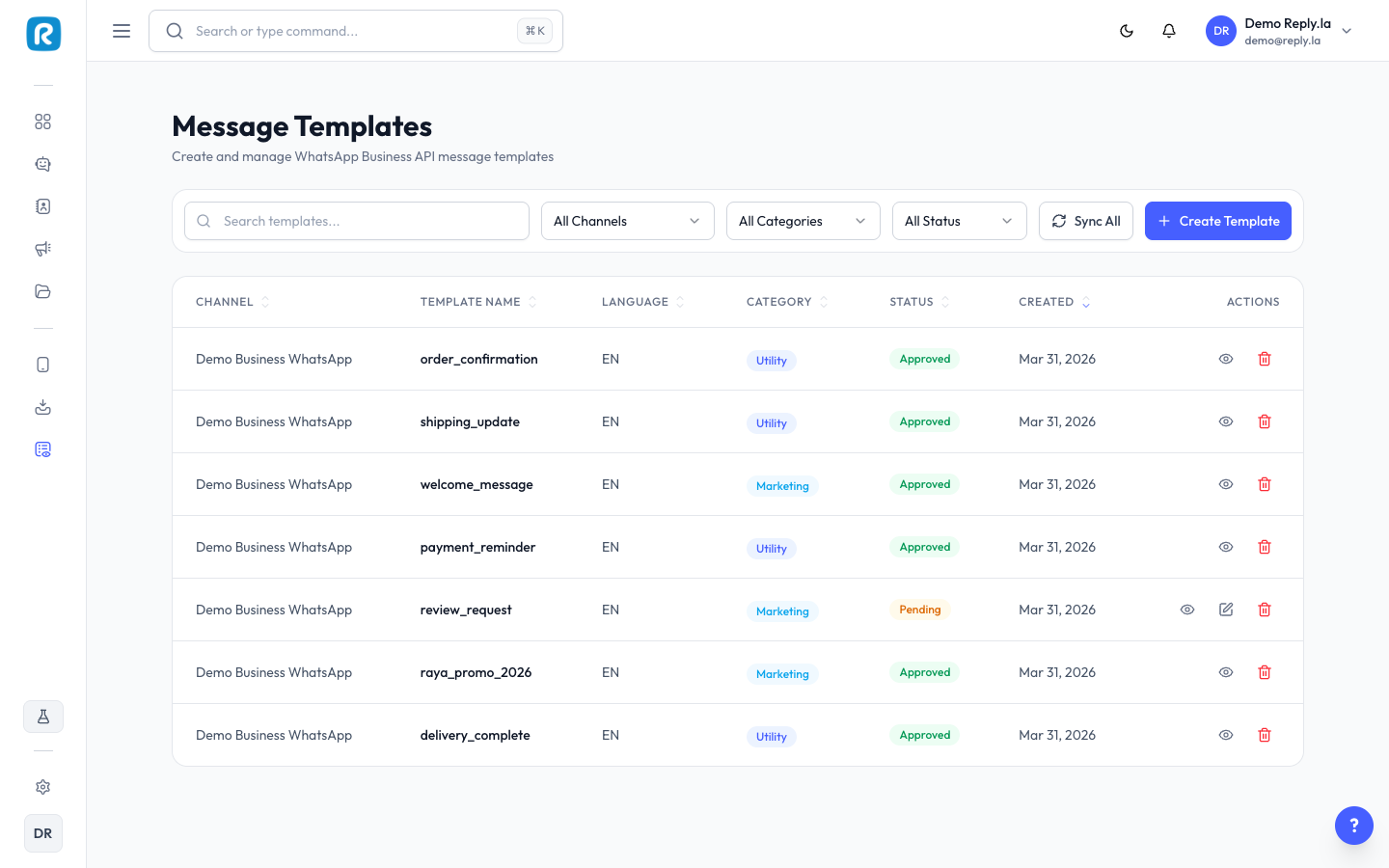
What Are Templates?
WhatsApp requires businesses to use pre-approved message templates when sending the first message to a customer or when the 24-hour conversation window has expired.
Why Do I Need Templates?
- Starting conversations - You can't message a customer out of the blue without a template.
- After 24 hours - Need a template to re-open expired conversations.
- Broadcasts - Sending the same message to multiple customers.
- Notifications - Order confirmations, shipping updates, appointment reminders.
How To Create a Template
- Click Templates on the left sidebar.
- Click Create Template (the + button).
- Fill in the details:
- Template Name - Lowercase with underscores (e.g., "welcome_message").
- Category - Marketing, Utility, or Authentication.
- Language - Select the language (e.g., Malay, English).
- Header (optional) - Text, image, video, or document. You can upload media files directly.
- Body - Main message. Use variables like
{{1}},{{2}}for dynamic content. - Footer (optional) - Small text at the bottom.
- Buttons (optional) - Call-to-action or quick reply buttons.
- Click Submit for Review.
- Wait for WhatsApp to approve your template (usually takes a few minutes to a few hours).
Template Examples
Welcome Message:
Hi {{1}}! Welcome to our shop. We're here to help you find the perfect outfit.
Reply to this message to start chatting with us!
Order Confirmation:
Hi {{1}}, your order #{{2}} has been confirmed!
Total: RM{{3}}
Delivery: {{4}} business days
Promotion:
Hi {{1}}! Good news - our Sale has started!
Get up to 50% off on all items this weekend.
Shop now before stocks run out!
Template Status
| Status | Meaning |
|---|---|
| Pending | Waiting for WhatsApp review |
| Approved | Ready to use |
| Rejected | Edit and resubmit |
Keep templates short and clear. Avoid spammy language. Start with Utility templates - they have higher approval rates.
Draft Templates
You can save templates as drafts before submitting for review. Drafts let you prepare and review templates before sending them for WhatsApp approval. When you're ready, open the draft and click Submit for Review.
Template Permissions
The Send Templates permission controls who on your team can send template messages. Configure this in Organization settings under team member roles. Only users with this permission can send template messages from the Inbox or Broadcasts.
Common Questions
Usually a few minutes to a few hours. Rarely up to 24 hours.
Common reasons: spammy language, missing personalization variables, unclear purpose, or policy violations.
You'll need to create a new template. Approved templates can't be edited directly.
Yes, save it as a Draft. You can review and submit it later when you're ready.