

Manage Chatbots
The Chatbots page is where every chatbot in your organization lives. From here you can create a new one, reuse a setup you already trust, or move a chatbot to another account. Open it from Chatbot in the main sidebar.
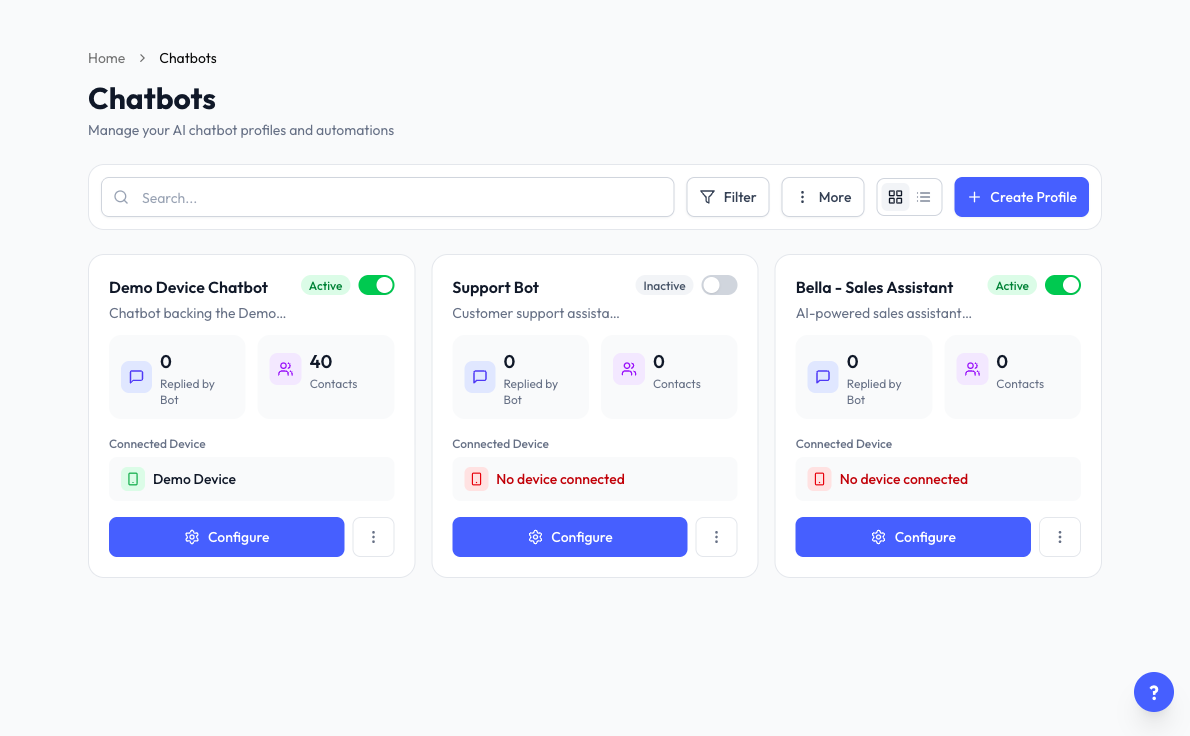
Find a Chatbot
- Search - Type in the search box at the top of the page.
- Filter - Narrow the list by status (All Status, Active, Inactive), device (All Devices), or Tags.
- Grid view and List view - Switch how the list is shown.
Read a Chatbot Card
Each card shows:
- The chatbot's name and description.
- Active or Inactive, with a switch to turn the chatbot on or off.
- Replied by Bot and Contacts counts.
- Connected Device, or No device connected.
- Draft, if the chatbot has an unpublished Playground draft.
Click Configure to open the chatbot's settings. If turning a chatbot off would stop pending activity, Reply.la asks you to confirm first.
The three-dot menu on the card has Copy Chatbot ID, Save to My Templates, Export, Duplicate, and Delete. What you see depends on your permissions.
Create a Chatbot
- Click Create Profile.
- Enter a Chatbot Name.
- Under Choose your Device, select a device now or connect one later in General Settings.
- Optionally add a Description and Labels / Tags.
- Click Create Chatbot.
The number of chatbots you can create depends on your plan. At the limit, clicking Create Profile shows Plan limit reached, with a link to upgrade. Delete a chatbot you no longer need, or upgrade your plan, to create more.
Chatbot Templates
A template saves you from starting with a blank chatbot. Open More > Browse Templates to see what is available.
Use a Template
- In Templates, search or filter by AI Chatbot or Keyword Bot.
- Click Use Template on the one you want.
- Reply.la creates a new chatbot and opens its training page. Review the content and change it to match your business.
The new chatbot counts toward your plan limit. Click the heart on a template to mark it as a favourite. If your account has Marketplace, you will also see templates shared by other users there, which can be free or paid.
Save Your Own Template
- On a chatbot card, open the three-dot menu and click Save to My Templates. You can also click Save Template in General Settings.
- Enter a Template Name, an optional Description, and a Category.
- Save it.
A template saves your AI training data and system prompt, keyword rules and configuration, and labels or tags. It stays private to you unless you share it.
If the chatbot already has a template, the menu reads Update Template. Updating creates a new version, and Reply.la keeps the latest 3 versions for every template.
Manage Saved Templates
Open Browse Templates, then Saved Templates. From there you can see earlier versions, export or delete a template, and, if your account has Marketplace, use Share to Marketplace or Unshare.
When you share a template, set a Price (MYR), or 0 for free. It goes for admin review before it appears in the Marketplace.
Duplicate a Chatbot
Open the three-dot menu on a card and click Duplicate, then confirm. Use this when you want a similar chatbot for another product or team.
The copy is named after the original with (Copy) at the end. It keeps the training, settings, labels, and AI Knowledge entries, with these differences:
- It starts Inactive, with no device connected.
- Its AI Knowledge entries need training before the copy can use them. See Train Your Chatbot.
- AI Tools are not copied, so add them again if you need them.
The copy counts toward your plan limit.
Export a Chatbot
Exporting downloads a chatbot as a JSON file, which you can keep as a backup or import into another account.
- On a card, open the three-dot menu and click Export.
- Or open More > Export Chatbot and select a chatbot.
PDF files in AI Knowledge are not inside the export, so upload them again after importing. Teammates picked in Human Takeover are not carried over either.
Import a Chatbot
Open More > Import Chatbot and choose where the file came from.
From a Reply.la Export
- Keep the Reply.la option selected.
- Upload the JSON file (max 2MB).
- Check the name and description shown.
- Click Import Chatbot.
From Wasapbot
If you are moving from Wasapbot, you can bring your rules over using a Wasapbot device export.
- Select Wasapbot and upload the JSON file (max 2MB).
- Read the notes panel. It lists anything that needs your attention and how some settings change to fit Reply.la.
- Under Chatbot AI, choose the AI rule to import. Chatbot Name fills in from it, and you can change it.
- Under Keyword Rules, select the keyword rules to bring over.
- Click Import Chatbot.
Media files load in the background after the import. If any cannot be fetched, Reply.la tells you so you can open the chatbot's Keywords page and attach them again.
Delete a Chatbot
Open the three-dot menu on a card and click Delete, then confirm. This cannot be undone.
If the chatbot has saved templates, Reply.la warns you first. Deleting it freezes the shared template, which means the template no longer receives updates.
Common Questions
Last updated: 5 November 2026