

Contacts
Manage Labels
Create and organize labels to categorize your contacts.
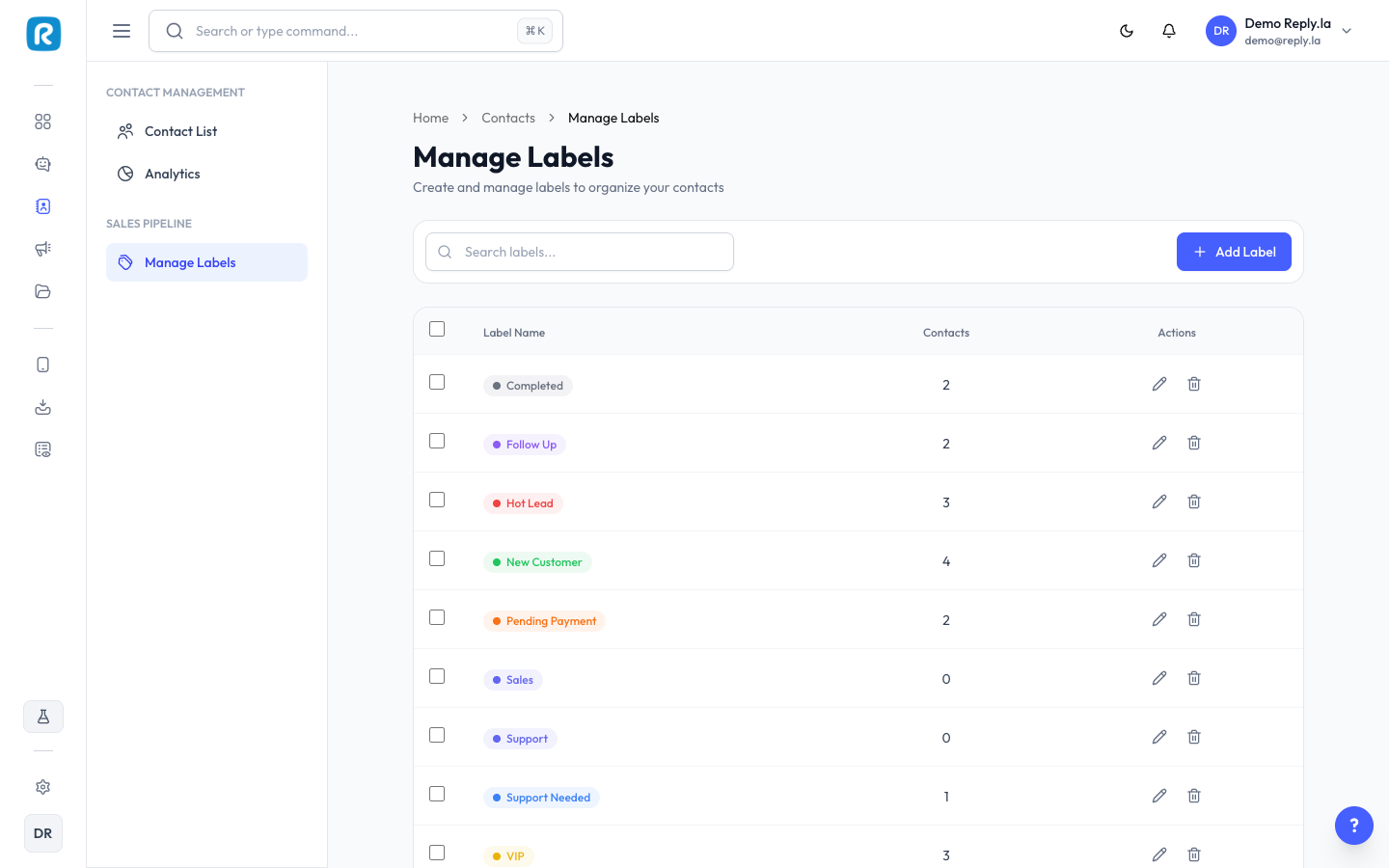
What Are Labels?
Labels are tags you attach to contacts to organize them. Think of them like colored stickers on a filing cabinet.
How To Manage Labels
- Click Contacts > Manage Labels.
- Create, edit, or delete labels.
Creating a Label
- Click Create Label or +.
- Enter the label name.
- Click Save.
Editing a Label
- Click the edit icon next to the label you want to change.
- Update the name.
- Click Save.
Deleting a Label
- Click the delete icon next to the label.
- Confirm the deletion.
Deleting a label removes it from all contacts that had it. The contacts themselves are not deleted.
Suggested Labels
For Online Shops
| Label | Use For |
|---|---|
| Hot Lead | Actively asking about products, ready to buy |
| Warm Lead | Interested but not ready yet |
| Customer | Has made a purchase |
| Repeat Customer | Has purchased more than once |
| Returns/Exchange | Requesting a return or exchange |
For Service Businesses
| Label | Use For |
|---|---|
| Inquiry | Asking about services |
| Booked | Has made an appointment/booking |
| Completed | Service has been completed |
| Follow-up | Needs a follow-up call/message |
| VIP | High-value client |
For Restaurants/F&B
| Label | Use For |
|---|---|
| New Customer | First-time customer |
| Regular | Orders from you frequently |
| Catering Inquiry | Asking about catering/bulk orders |
| Complaint | Has an issue with service or food |
Use labels with Auto Label to let the AI automatically tag contacts during conversations.
This page is for managing the master label list. To apply labels to a single contact while chatting, see Add a Label in the Inbox.
Common Questions
Yes! A contact can have several labels at once (e.g., "VIP" and "Repeat Customer").
No strict limit, but keep it manageable. 5-10 labels is usually enough.
The label is simply removed from those contacts. The contacts themselves are not affected.