

Integrations and REST API
The Integrations page is where you connect Reply.la to the tools your business already uses. Use it to link an AI app, or to create a token so your own systems can work with your contacts, templates, and messages.
The Integrations Page
Click Integrations in the sidebar. You need a role with permission to manage integrations to see it.
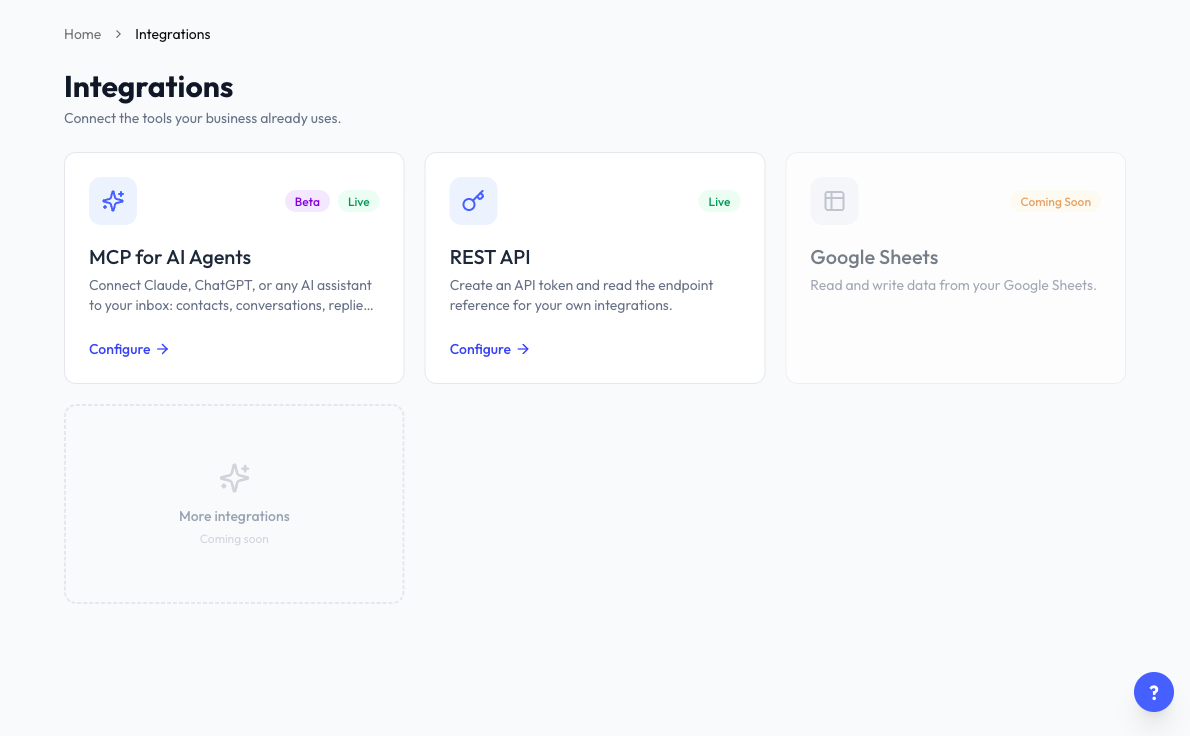
| Card | What it does |
|---|---|
| MCP for AI Agents | Connect Claude, ChatGPT, or any AI assistant to your account. See Connect Your AI to Reply.la. |
| REST API | Create an API token and read the endpoint reference for your own integrations. |
| Outbound Webhook | Send your account events to your own server or automation tool. Depends on your plan. See Outbound Webhooks. |
Click Configure on a card marked Live to open it. Cards marked Coming Soon can't be opened yet. Your plan may show other cards too.
Create Your API Token
A token lets your own system call the Reply.la REST API. Anyone holding it can do everything its scopes allow in your organization, so treat it like a password.
Your organization has one API token at a time.
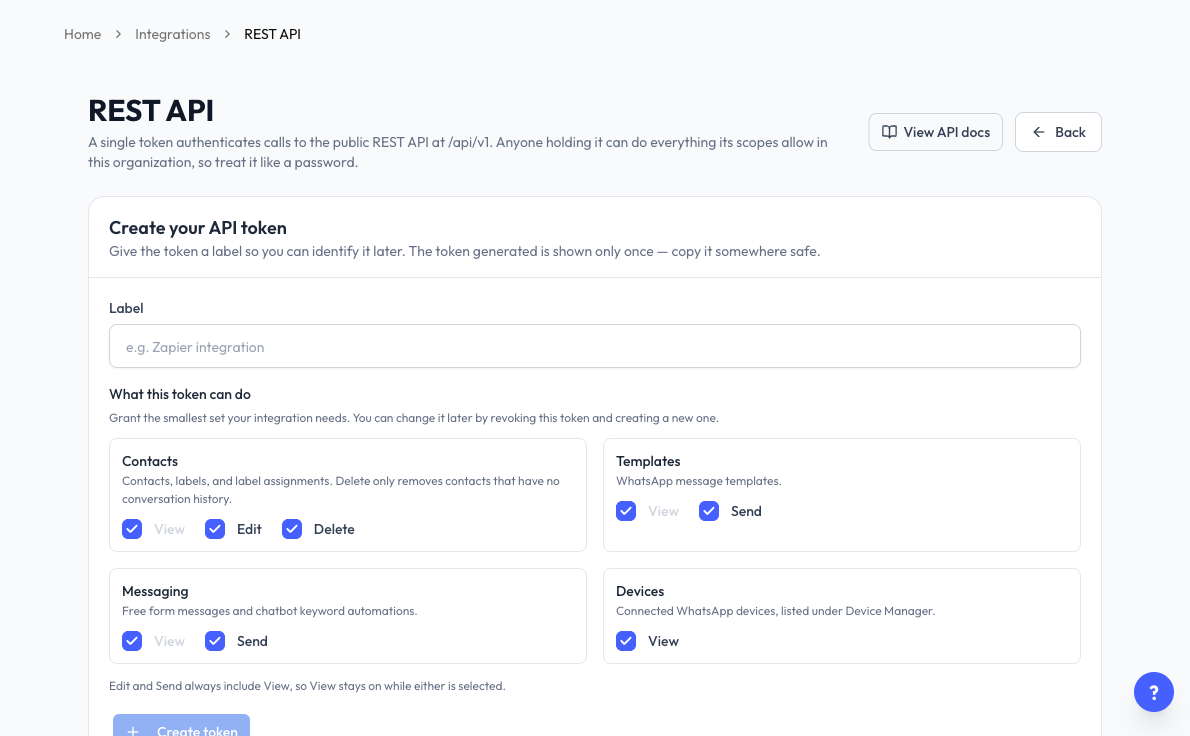
- On the Integrations page, click Configure on REST API.
- Under Label, give the token a name you'll recognise, for example "Zapier integration".
- Under What this token can do, leave ticked only what your integration needs.
- Click Create token.
- In Copy your new API token, click Copy to clipboard, store the token somewhere safe, then click Done.
Your system sends the token with each call:
Authorization: Bearer YOUR_API_TOKEN
Click View API docs at the top of the page for the full endpoint reference, including each address and example request.
What Each Scope Allows
| Area | Options | Covers |
|---|---|---|
| Contacts | View, Edit, Delete | Contacts, labels, and label assignments. Delete only removes contacts that have no conversation history. |
| Templates | View, Send | WhatsApp message templates. |
| Messaging | View, Send | Free form messages and chatbot keyword automations. |
| Devices | View | Connected WhatsApp devices, listed under Device Manager. |
Edit and Send always include View, so View stays on while either is selected. A token can't go beyond what your own role allows.
To change a token's scopes later, revoke it and create a new one. Regenerating keeps the same scopes.
Manage Your Token
Once a token exists, the page shows Your API token with its label, scopes, when it was created and last used, and when it expires.
- Rename - Change the label.
- Regenerate - Get a new token value. The old value stops working immediately, so update every integration that uses it.
- Revoke - Delete the token. Any integration using it stops immediately, and this cannot be undone.
A token expires after a long period without use. The page shows the exact number of days and the expiry date, and any API call extends the window. If a token has expired, click Regenerate to get a new value.
The Lifecycle card lists the last 30 days of token activity.
If your role can't manage integrations, you see the token's details but not these buttons. Ask the organization owner for the permission.
Connections, Connected Agents, and API Tokens
These three look similar, but they answer different questions.
| Settings > Connections | Connected agents | REST API token | |
|---|---|---|---|
| What it lists | Apps you allowed to sign in as you, or to work on your behalf | AI apps connected to this organization through MCP | One token for your own integrations |
| Who it belongs to | You | The person who approved each app | The organization |
| What you can do | See what each app may do, and Disconnect it | Edit access and Revoke | Rename, Regenerate, and Revoke |
| Where to find it | Settings menu | Integrations → MCP for AI Agents | Integrations → REST API |
An AI app you connect through MCP appears in both Connections and Connected agents. Removing it from either one ends its access immediately. You stay signed in on your device, and you can connect the app again from the app itself.
To change what an AI app may do, use Edit access under Connected agents. Connections shows the permissions but doesn't change them. If Integrations isn't in your sidebar, Connections is where you can still disconnect your own apps.
An API token doesn't appear in Connections, because it belongs to the organization rather than to you.
Which One Should I Use?
- Use MCP when you want to talk to an AI app in plain language. You approve it on a sign-in screen, and you never handle a token. It can reach more areas, including your Inbox, chatbots, and Blaster drafts. See How to Use MCP.
- Use a REST API token when your own system or an automation tool needs to keep running regardless of who's on the team. It covers Contacts, Templates, Messaging, and Devices, and it doesn't work with AI apps through MCP.
- Use an outbound webhook when your system should hear about events as they happen, without having to ask. See Outbound Webhooks.
Common Questions
Last updated: 5 November 2026
How to Use MCP
What you can ask your AI agent once it's connected to Reply.la, with example questions, sample answers, and the permission each one needs.
Outbound Webhooks
Send your Reply.la account events, like new messages and new contacts, to your own server or automation tool the moment they happen.