

Settings
Connections
See the applications you allowed to sign in as you or work on your behalf, and disconnect them.
See at a glance which applications can act as you in Reply.la, and cut off any of them in one click.
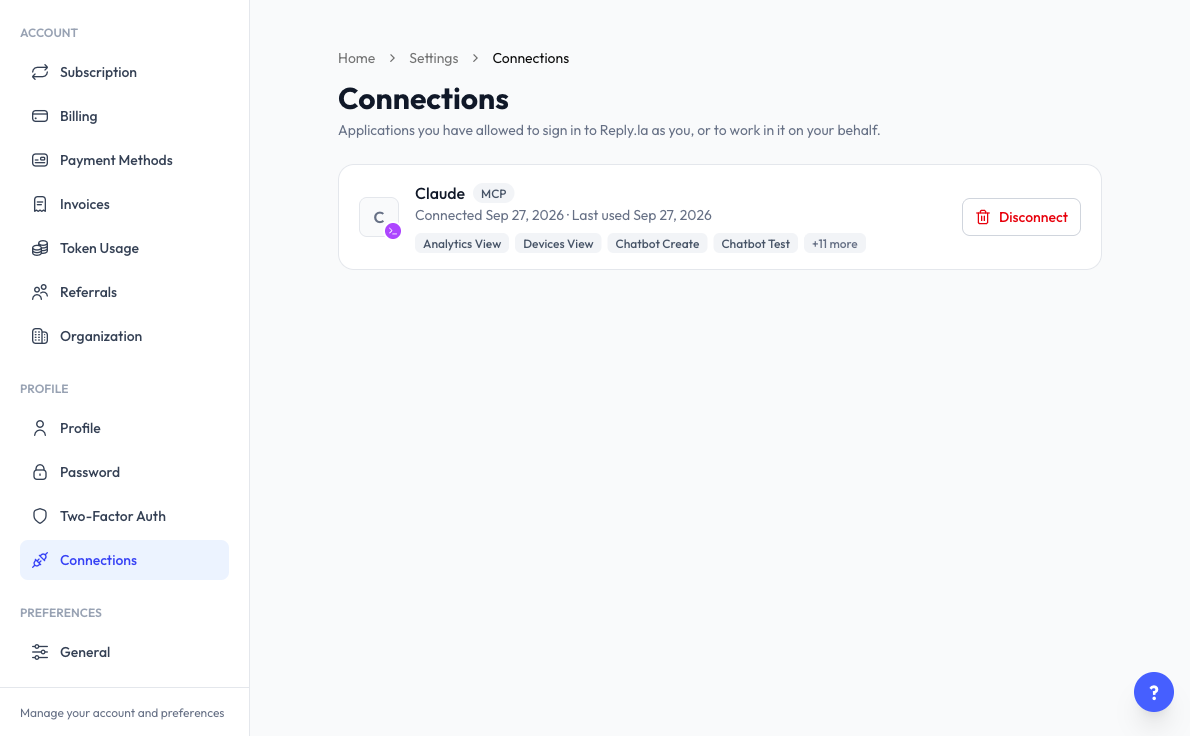
Open Connections
Click Settings > Connections.
Nothing is connected until an application asks and you agree, so this page is empty for most accounts.
What Each Connection Shows
- Name and type - The application, with a label such as MCP or Sign-in.
- Connected and Last used - When you allowed it, and when it was last active.
- Permissions - What it may do. Hover over +N more to see the rest.
If you have several connections, you can filter by type or use Search connections.
Disconnect an Application
- Click Disconnect on the application.
- Confirm in the dialog.
It can no longer sign you in, and any access it holds is revoked immediately. You stay signed in on your device, and you can connect it again from the application.
This page is where you stop a connection. To connect an AI agent or change what it can reach, see Connect Your AI.
Last updated: 5 November 2026