

WhatsApp Web Direct API
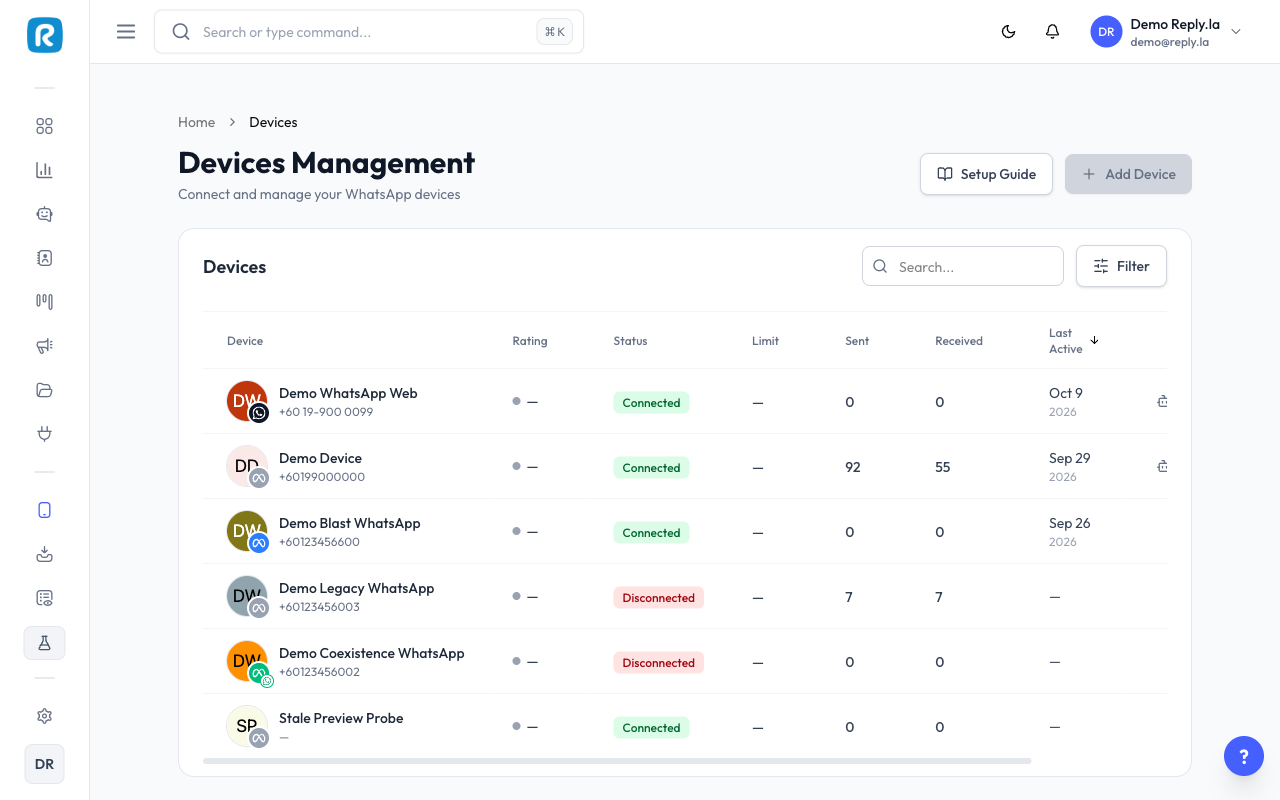
WhatsApp Web Direct API connects a WhatsApp number to Reply.la by scanning a QR code, the same way you link WhatsApp Web. Reply.la then becomes one of the number's linked devices. Once connected, the device shows a WhatsApp Web badge.
Watch a 2-minute introduction (in Bahasa Malaysia):
Who Should Use It
WhatsApp Web Direct API is suitable for a small-scale AI chatbot: a small business answering customers who message first, at low volume.
It is not suitable for:
- A number your business cannot afford to lose.
- High message volume or many customers at once.
- Promotions, broadcasts or messaging people who did not contact you first.
If any of these apply, use Meta Official Business API instead. See Connect a Device.
Do Not Connect a New WhatsApp Account
Meta Official vs WhatsApp Web Direct API
| Meta Official Business API | WhatsApp Web Direct API | |
|---|---|---|
| How it connects | Through Meta's setup, with a Meta Business account | Scan a QR code from the phone |
| Official | Yes, approved by Meta | No. The number can be banned at any time |
| Device badge | Cloud API or Coexistence | WhatsApp Web |
| 24-hour window | AI and free-form replies only within 24 hours of the customer's last message | No window. Messages can be sent at any time |
| Templates | Yes, after Meta approves them | No |
| Start a new conversation | Approved template only | Ordinary text message |
| Blaster | Yes | No |
| Meta message charges | Yes. See WhatsApp Pricing | No Meta charges |
| Click-to-WhatsApp ad window | Yes, so Ad Leads Only works | No, so Ad Leads Only does nothing |
| Buttons and lists | Real tappable buttons | Numbered text. The customer replies with a number, such as "1" |
| File size | Up to 100MB for documents, less for other types | Up to 25MB per file |
| Quality rating and messaging limit | Shown in Device Manager | Not available |
| WhatsApp Profile tab | Yes | No. Edit the profile in WhatsApp on the phone |
| Typing effect | Also marks the customer's message as read (blue ticks) | Shows typing only. Nothing is marked as read |
| Device limit | Counts toward your plan | Counts toward your plan |
Other Limitations
| Area | What to expect |
|---|---|
| Ban risk | The number can be restricted or banned by WhatsApp at any time. Reply.la cannot appeal or recover it for you. |
| Scale | Built for small-scale chatbots only. Higher volume means higher ban risk. |
| Groups and Status | Group chats, Status updates, broadcast lists and Channels are ignored. They do not appear in the Inbox and the chatbot only replies in one-to-one chats. |
| Offline backlog | Messages that arrive while the connection is down still appear in the Inbox, but the chatbot does not answer messages older than 24 hours. |
| Unsupported messages | Some message types, such as polls, show as Unsupported message in the Inbox. Open WhatsApp on the phone to see them. The AI does not reply to them. |
| Contact cards | Contact cards cannot be sent. |
| One device per number | Each WhatsApp number can be connected to only one WhatsApp Web device on Reply.la. |
| Availability | This channel is in Beta and only appears for organizations whose plan includes it. |
Reduce the Risk of a Ban
There is no way to remove the risk completely, but these habits help:
- Use an established number with a long, normal chat history.
- Reply only to customers who message you first.
- Keep message volume low. Do not send the same message to many people.
- Do not use this number for promotions or broadcasts.
- Keep the phone in use. WhatsApp logs out linked devices if the main phone is not used for 14 days.
- Keep a backup way for customers to reach you, in case the number is banned.
Connect a Number
- Click Device Manager in the left sidebar.
- Click Add Device. At How do you want to connect?, choose WhatsApp Web Direct API.
- On the phone you want to connect, open WhatsApp and go to Settings > Linked devices.
- Tap Link a device and scan the QR code on screen. Keep the page open, as the code refreshes automatically.
- When you see Name this device, enter a name such as "Sales phone" and click Save. Or click Skip to keep the name from the WhatsApp account.
Then link the device to a chatbot in its General Settings.
If the Scan Is Refused
| Message | What to do |
|---|---|
| Number already connected | The number is already used by another WhatsApp Web device, in your organization or another one on Reply.la. Reconnect or delete that device first. |
| Device limit reached | Your plan's device limit was reached. Remove a device or upgrade your plan, then scan again. |
After a refused scan, check Linked devices on the phone. If Reply.la is still listed there, remove it.
What Changes in Your Chatbot
Your chatbot works the same way on both device types, except for the settings below.
| Feature | On a WhatsApp Web device |
|---|---|
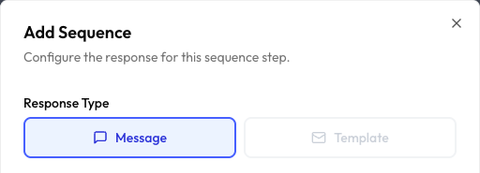
| Keywords | The Template step type is not available. Use Message steps. |
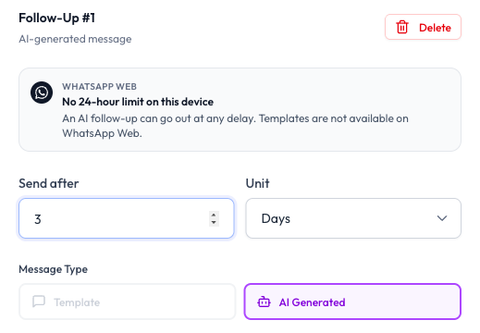
| Auto Follow Up | The Template step type is not available. AI Generated steps can be sent at any delay, even after days. |
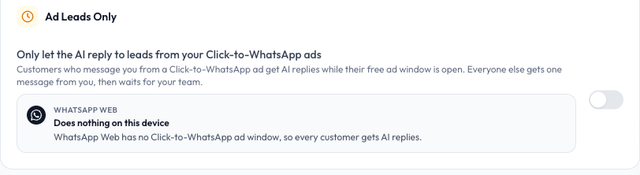
| Ad Leads Only | Does nothing. Every customer gets AI replies. Use Human Takeover to hand customers to your team instead. |
| Typing Effect | Shows typing to the customer, but does not mark their message as read. |
Human Takeover, Auto Label, AI Tools, AI Knowledge and the other chatbot settings work the same on both device types.
Moving a Chatbot Between Device Types
Reply.la never changes or deletes your settings when you move a chatbot from a Meta device to a WhatsApp Web device, or back. Instead, every chatbot page shows a banner listing the settings that cannot run on the new device, each with a Fix link.
| Moving to | Settings listed |
|---|---|
| WhatsApp Web | Auto Follow Up template steps, keyword replies that send templates, and Ad Leads Only if it is on. |
| Meta Official | Auto Follow Up AI Generated steps that may be sent more than 24 hours after the customer's last message. Keep each AI step within 23 hours 50 minutes. |
If you publish a draft that was made while the chatbot was on a different device type, Reply.la shows This chatbot is on another device now with the same list. Click Publish Anyway to publish, and the settings stay listed until you change them.
What Changes in the Inbox
- No conversation window. There is no colored ring or countdown, and the Active Window filter includes every WhatsApp Web conversation. See Conversation Window.
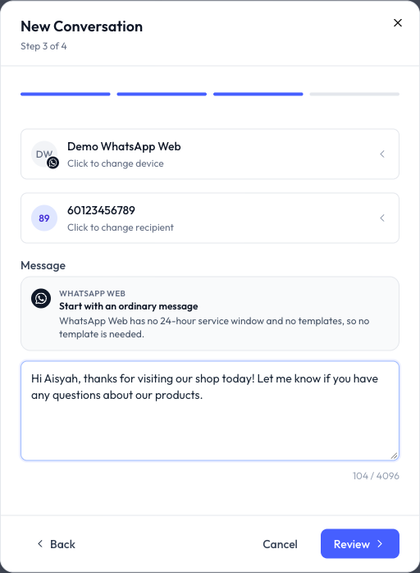
- New conversations use a normal message. In New Conversation, step 3 asks for a message instead of a template.
- Replies from the phone. Messages you send from the phone or WhatsApp Web also appear in the Inbox, labelled Phone. The chatbot does not pause when you reply from the phone, so pause the AI in the Inbox when your team takes over.
- File size. Each file you send can be up to 25MB.
- Failed messages. If a message cannot be sent, check that the device is connected in Device Manager, then try again.
What Changes in Contacts
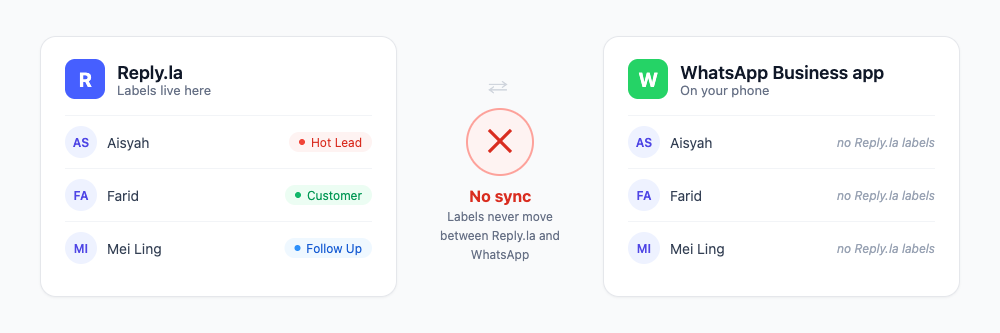
- Labels stay in Reply.la. Labels do not sync to the WhatsApp Business app or WhatsApp on the phone, in either direction. See Manage Labels.
- A customer you start a chat with from the phone gets the lead source Started by you.
- WhatsApp sometimes hides a customer's phone number. The contact then shows no phone number, with the note This contact hasn't shared their phone number with you. You can still reply from the Inbox. If the number is shared later, Reply.la merges the contact automatically.
Features Not Available
- Templates. WhatsApp Web devices do not appear in the template device picker. See Templates.
- Blaster. WhatsApp Web devices do not appear in the Blaster device list. See Blaster.
- WhatsApp Profile tab, quality rating and messaging limit in Device Manager. In the device list, the Rating and Limit columns show a dash.

Disconnect and Reconnect
Disconnect
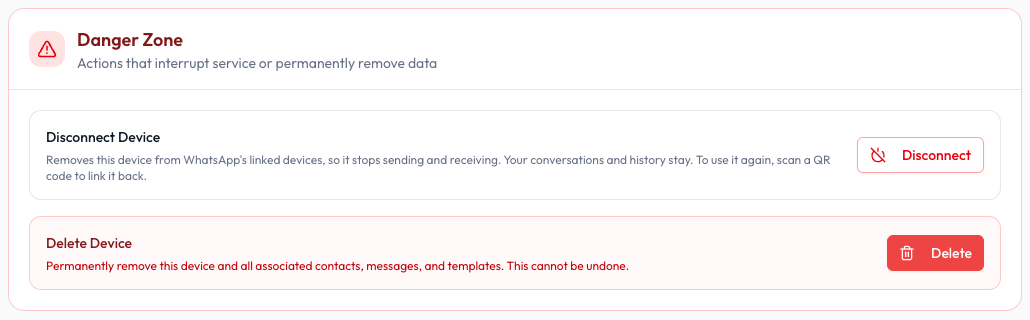
Open the device and go to Advanced. In the Danger Zone, under Disconnect Device, click Disconnect. This removes Reply.la from the phone's linked devices. Your conversations and contacts stay in Reply.la.
When the Phone Logs Out
The device changes to Disconnected and shows why:
| Card | What happened |
|---|---|
| Device unlinked from WhatsApp | Reply.la was removed from Linked devices on the phone, or WhatsApp logged it out. |
| Device stopped responding | The connection dropped and could not recover. Check that the phone is online with WhatsApp open. If it comes back, the device reconnects by itself. |
Automatic replies stop while the device is disconnected. Reply.la sends an in-app and email notification if the device stays disconnected for about 3 minutes.
Reconnect
- Open the disconnected device in Device Manager.
- On Overview, click Scan to reconnect.
- Scan the QR code with the same number the device was connected to before.
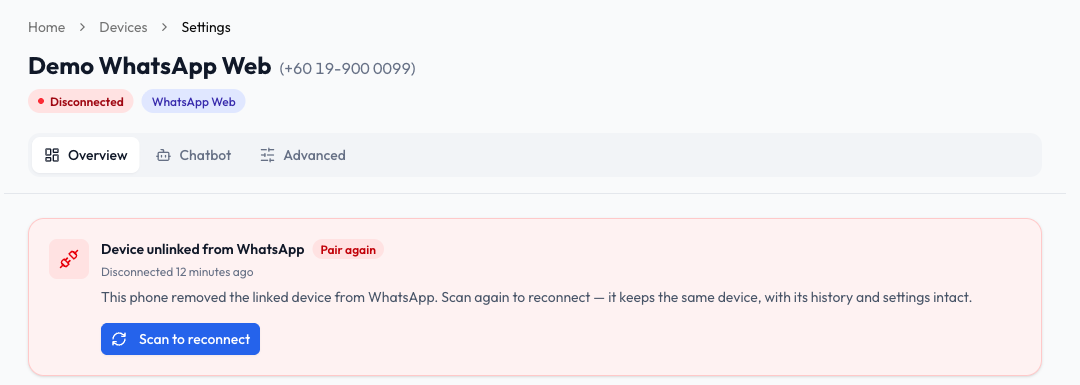
Reconnecting keeps the same device, with its conversations, history and settings. If you scan a different number, you see Wrong phone scanned and nothing changes.