

Inbox
Assign a Conversation
Hand a conversation to a teammate so everyone knows who's handling which customer.
When your team shares one Inbox, assigning a conversation makes it clear who's responsible for each customer. The assigned teammate can then filter the Inbox to see only their chats.
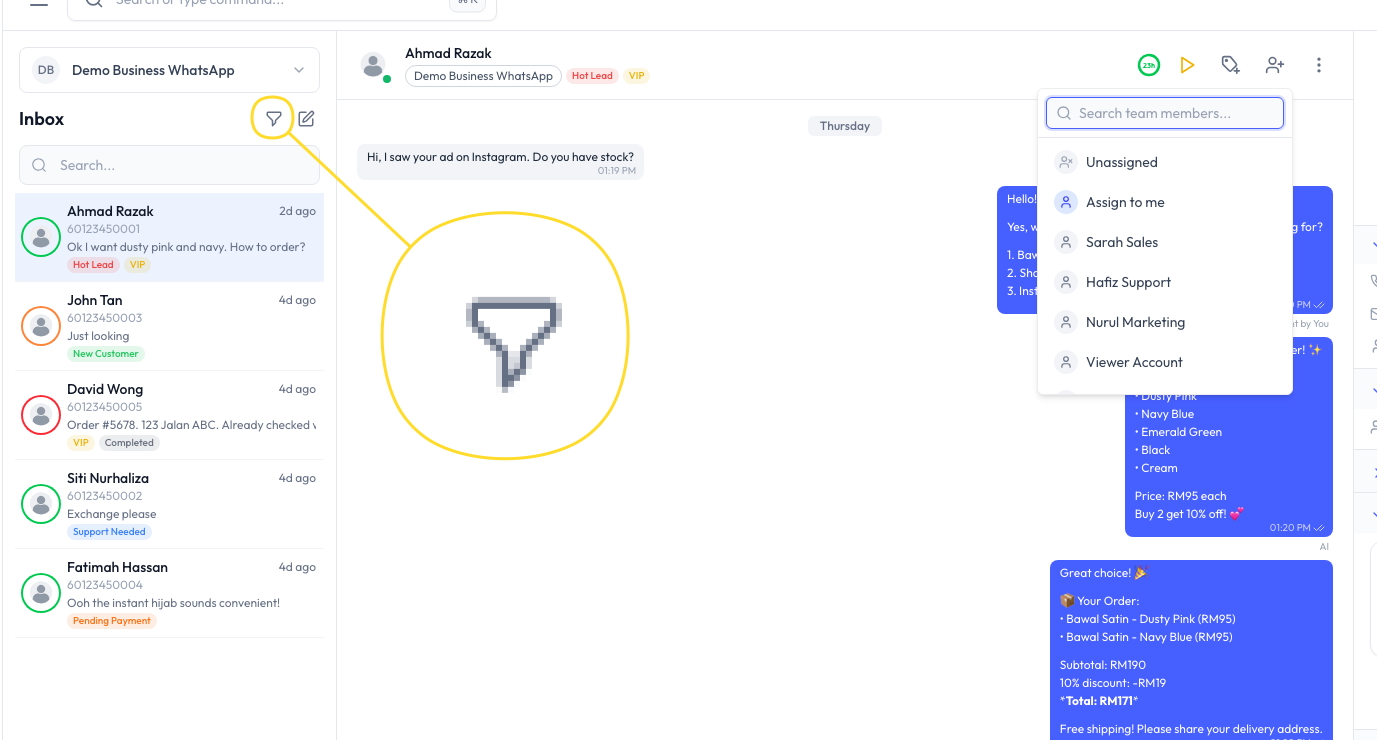
How to Assign a Conversation
- Open the conversation in the Inbox.
- Click the assign icon in the chat header.
- A dropdown opens with your team members.
- Pick who should handle this conversation:
- A team member - search by name and select them.
- Assign to me - take the conversation yourself.
- Unassigned - remove the current assignment so anyone can pick it up.
- The conversation is now assigned. The customer details panel shows who it belongs to.
Filtering the Inbox by Assignment
Once conversations are assigned, each teammate can focus on their own:
- Click the filter icon at the top of the Inbox.
- Filter by status:
- Assigned - conversations that already have an owner.
- Unassigned - conversations nobody has picked up yet.
- The conversation list updates to show only matching chats.
A common team routine: each person filters by their own assigned chats to handle their workload, and checks Unassigned to claim new conversations.
Common Questions
No. A conversation has one assignee at a time. Reassign it to hand it to someone else.
The conversation has no owner yet. It's waiting for a team member to pick it up. New conversations start as Unassigned.
Yes. Assignment shows who's responsible - it doesn't lock the conversation. Anyone with Inbox access can still open and reply.
Use the filter icon in the Inbox and filter by assignment. See Inbox Overview for all the filter options.