

Chatbot
Keywords
Build fixed response sequences that run when a customer message matches configured words or phrases.
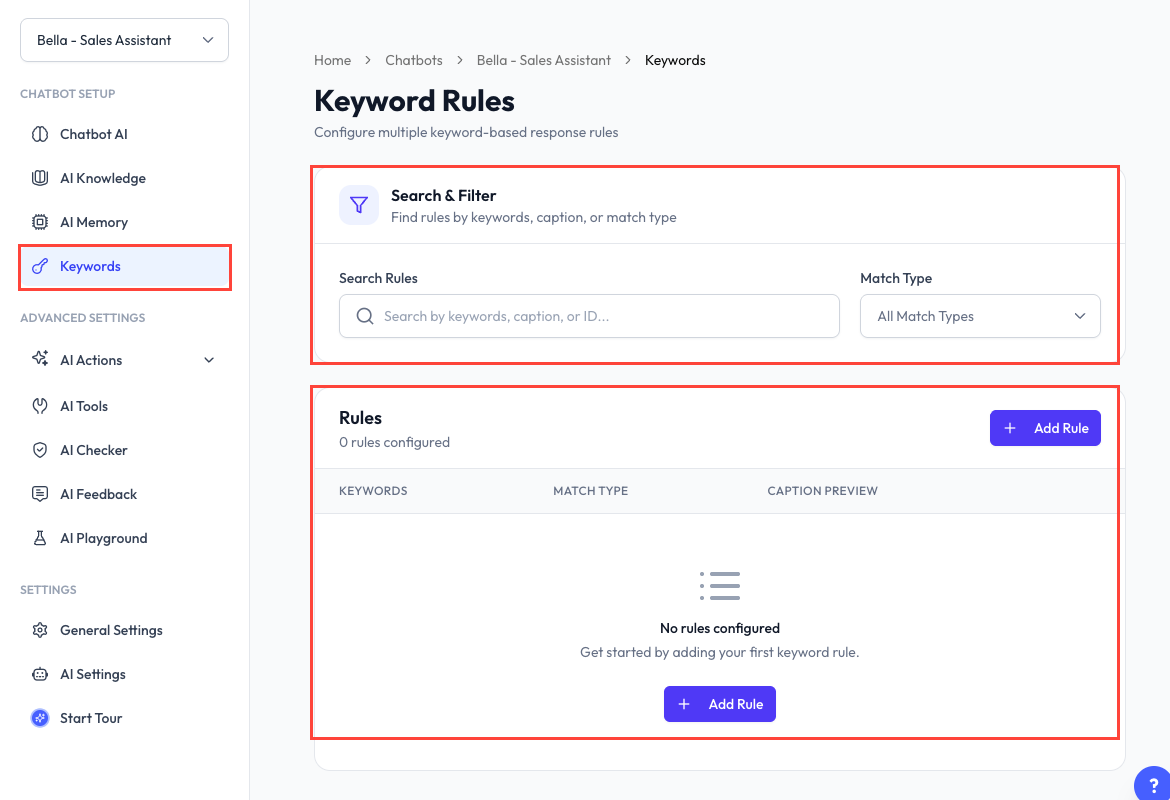
What Are Keyword Rules?
A keyword rule checks an incoming message for configured words or phrases. When it matches, ReplyLa runs the rule's response sequence without asking the AI to write a reply.
Find and Manage Rules
The Keyword Rules page lets you:
- Search by keyword, caption, or rule ID.
- Filter by match type.
- See whether a rule is active.
- Copy a rule ID.
- Edit, enable, disable, or delete a rule.
Disabled rules remain saved but are skipped during matching.
Create a Rule
- Open Chatbot and select a chatbot.
- Click Keywords.
- Click Add Rule.
- Enter one or more keywords.
- Choose a match type:
- Exact Match - The normalized customer message must match the keyword.
- Contains Match - The keyword may appear within a longer message.
- Add at least one response sequence or enable a Next Action.
- Save the rule.
ReplyLa warns about conflicting keywords so overlapping active rules can be corrected before saving.
Build a Response Sequence
Each sequence step can be:
- Message - Text with an optional image, video, audio, or document from File Manager.
- Template - An approved WhatsApp template from the chatbot's connected device, including required variable bindings.
For every step you can:
- Add a delay of up to 25 seconds.
- Edit or delete it.
- Drag it to change the order.
The steps are sent in the displayed order.
Next Actions
After the sequence finishes, a rule can:
- Add or remove contact labels.
- Make a REST API call using the selected HTTP method, URL, headers, and body values.
Supported contact variables can be inserted into the API values. Treat API credentials and headers as sensitive information.
Keywords vs AI
| Use a keyword rule when | Use AI when |
|---|---|
| The trigger and response must be predictable | The response depends on conversation context |
| You need a fixed sequence, media, or template | The AI should compose a natural answer |
| You want to add labels or call a webhook | You need reasoning or product recommendations |
Common Questions
The chatbot must be connected to a WhatsApp device, and the template must be approved.
Yes. Add multiple sequence steps and drag them into the required order.
The rule needs valid keywords and either a meaningful response sequence or an enabled Next Action. Template variables must also be completely bound.
The available rule count can depend on the active plan. Use the limit shown in the product.