

Book Appointments with Google Calendar
What This Does
The Google Calendar AI Tool connects your chatbot to one of your Google calendars. When a customer asks on WhatsApp for a time slot, the chatbot checks the calendar and answers with what is really free. In Auto mode it can also book the slot, and later move or cancel it when the customer asks.
Customer: "Ada slot facial esok pukul 3?"
        |
Bot checks your calendar for tomorrow at 3pm
        |
        +-- Free  --> "Yes, 3pm is free. May I have your
        |              phone number to book it?"
        |              --> Event created in your calendar
        |
        +-- Busy  --> "3pm is taken. 4pm and 5pm are free."
| The bot can | The bot cannot |
|---|---|
| Check which times are free or busy | Use a calendar your Google account does not own |
| Book, reschedule and cancel a customer's appointment (Auto mode) | Find a customer's appointment that was added by hand in Google Calendar |
| Send the customer a Google Calendar invite by email, if you turn it on | Take payment or a deposit for the booking |
Before You Start
You need:
- A Google account that owns the calendar you want to use. A calendar someone shared with you works only if they gave you Make changes and manage sharing.
- A Reply.la chatbot that is already answering your customers.
- About 15 minutes.
Step 1: Connect Your Calendar
- Open Chatbot, select a chatbot, and go to AI Tools.
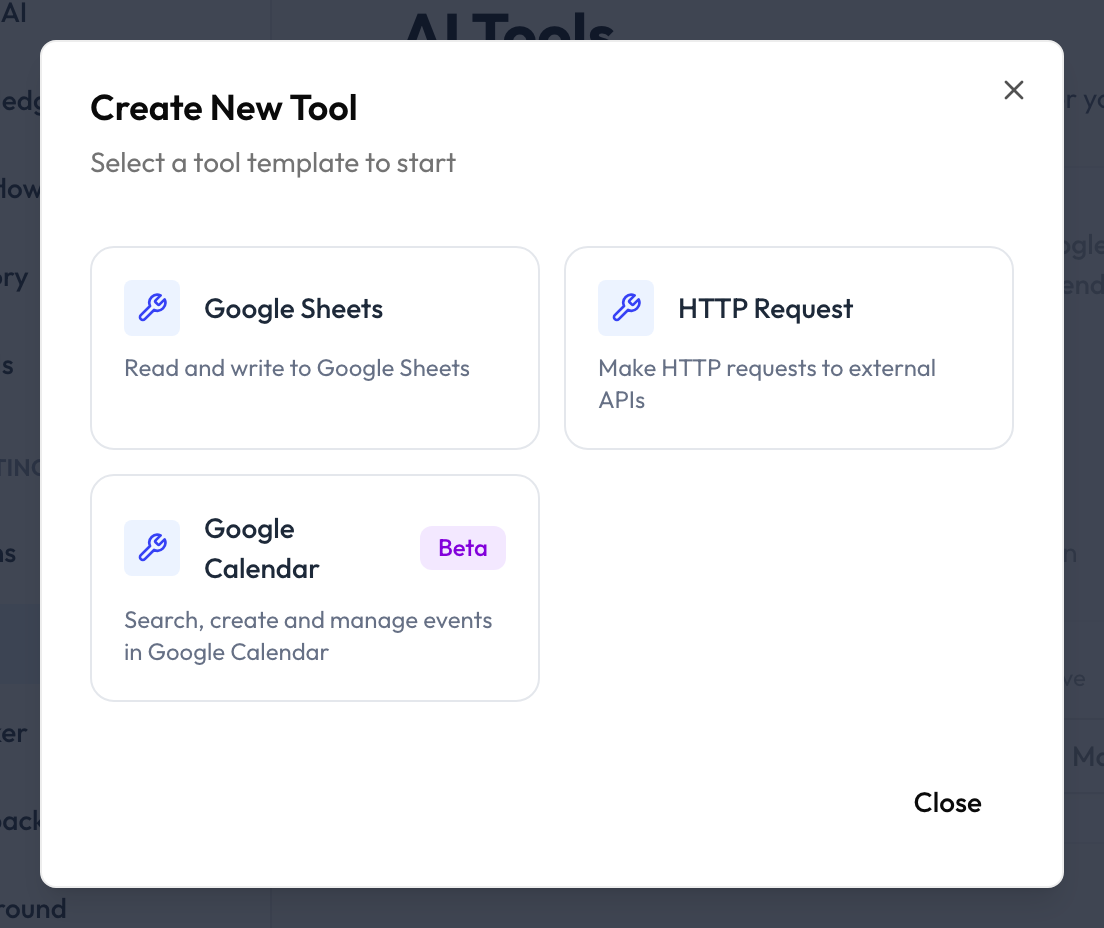
- Click Add New Tool and choose Google Calendar.
- Connect your Google account, or reuse one that is already connected to Reply.la.
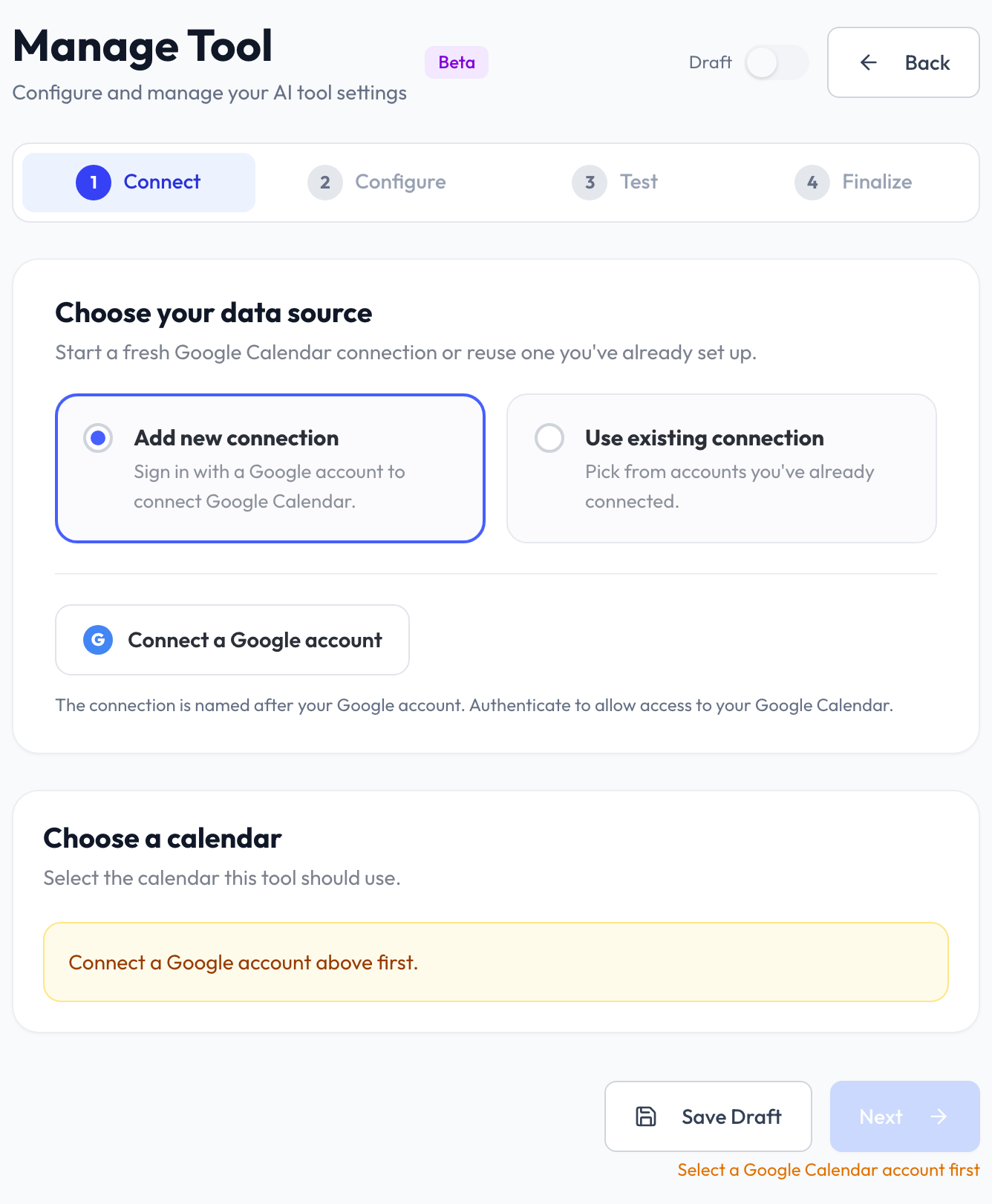
- Under Choose a calendar, click Load my calendars and pick the calendar the bot should use. If it is not listed, paste its Calendar ID instead. You can find the ID in Google Calendar under Settings > your calendar > Integrate calendar.
Reply.la saves the calendar's time zone automatically, so "tomorrow at 3pm" always means 3pm in your calendar's time zone.
Step 2: Choose What the Bot Can Do
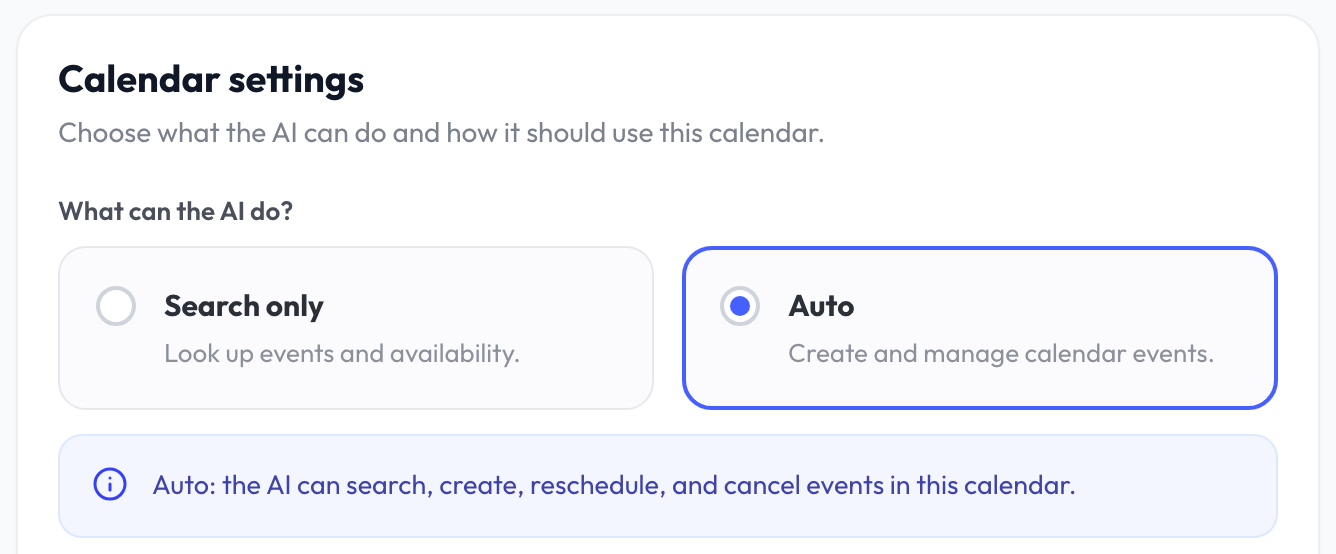
Under What can the AI do?, pick one:
| Mode | What the bot can do |
|---|---|
| Search only | Look up events and free times. It never changes your calendar. |
| Auto | Everything in Search only, plus book, reschedule and cancel customer appointments. |
Then fill in:
- Search instruction: tell the bot when to use this calendar, for example "Check this calendar when a customer asks whether a time slot is available." Click Generate to draft one.
- Max results: how many events the bot can show in one search, from 1 to 20. The default is 10.
Filter Result: What the Bot Can Read
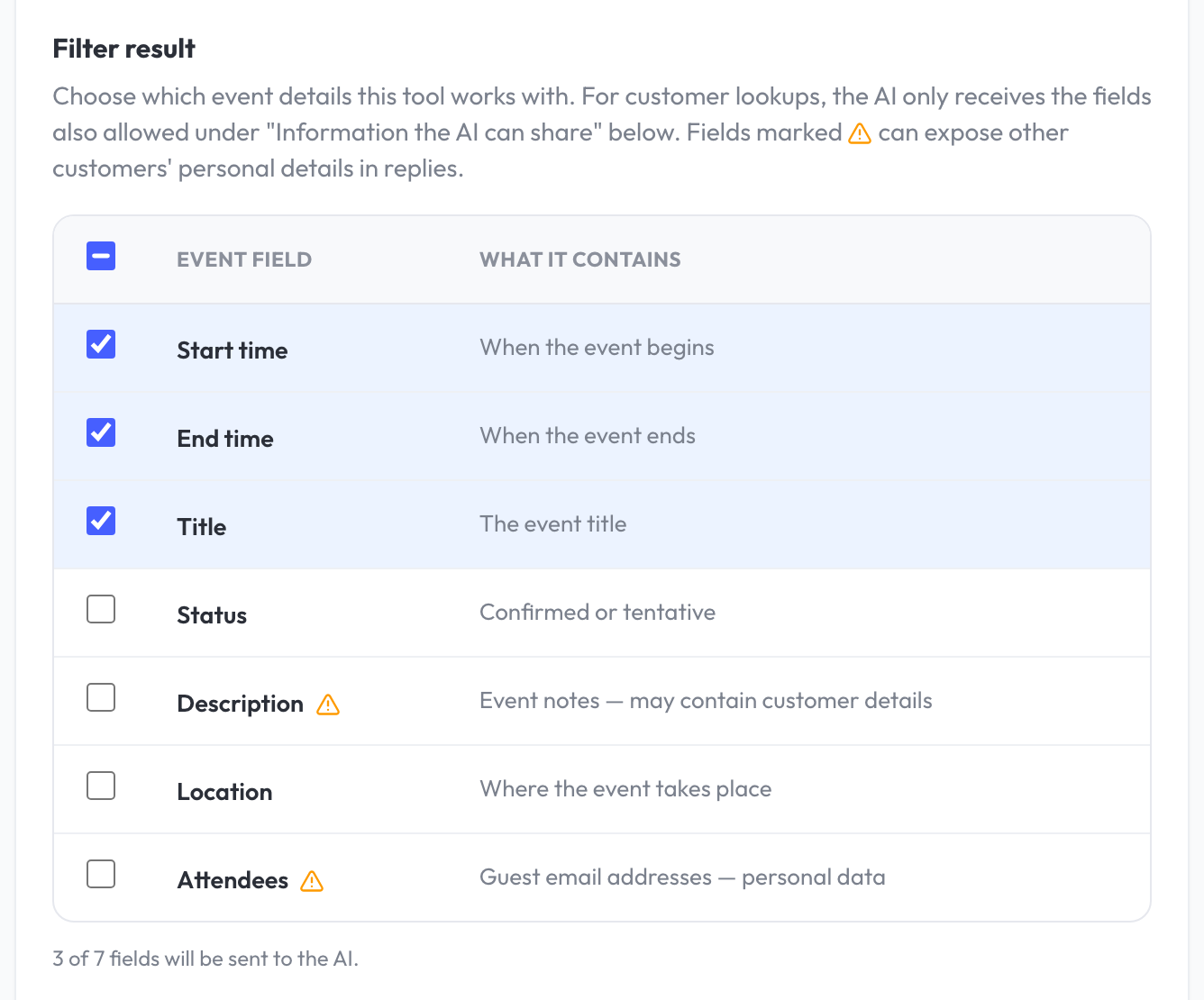
Choose which event details the bot receives when it searches:
| Field | What it contains |
|---|---|
| Start time / End time | When the event begins and ends |
| Title | The event title |
| Status | Confirmed or tentative |
| Description ⚠️ | Event notes, which may contain customer details |
| Location | Where the event takes place |
| Attendees ⚠️ | Guest email addresses |
Fields marked ⚠️ can carry other customers' personal details. Leave them off unless the bot really needs them.
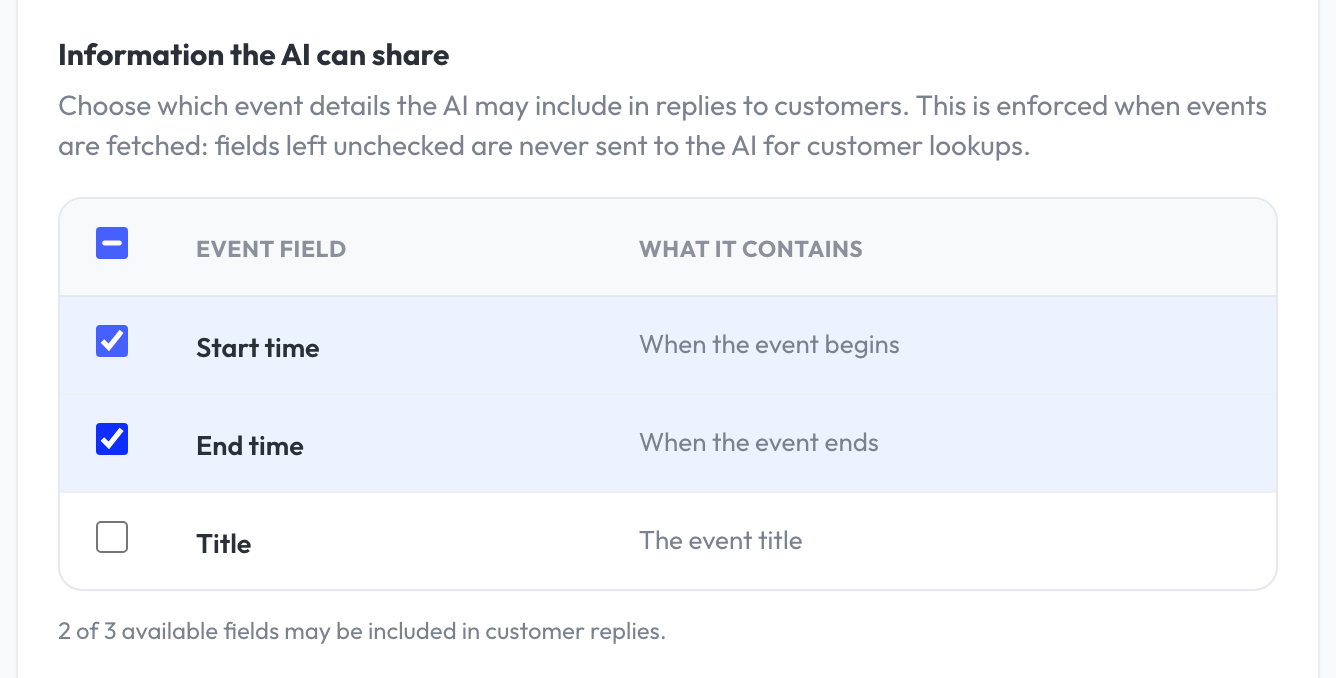
Information the AI Can Share
This list controls which of those fields the bot may tell a customer about their own booking. Nothing is ticked at the start. For example, tick Start time, End time and Title so the bot can say "Your facial is on 20 Nov, 3pm to 4pm."
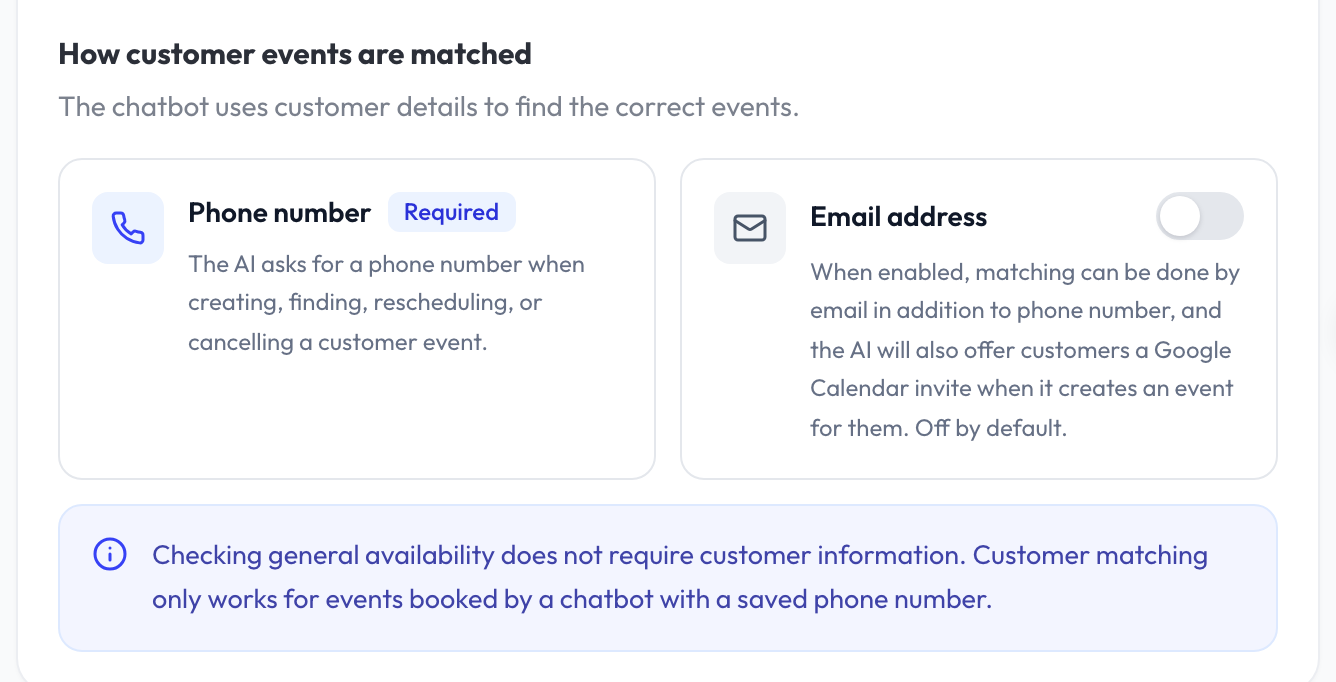
How Customer Appointments Are Matched
- Phone number (required): the bot asks for the customer's phone number before it books, finds, moves or cancels their appointment. It saves the number on the event, so the customer can come back later and say "tukar booking saya ke Jumaat".
- Email address (Auto mode, off by default): turn this on and the bot offers to send the customer a Google Calendar invite when it books. If the customer agrees, they get the invite in their email. If it stays off, the bot never asks for an email.
Step 3: Test the Tool
Under Test your calendar tool, pick an Action to test:
| Action | What it checks |
|---|---|
| Search events | Shows General availability (busy and free times), or A customer's events found by phone number |
| Create a test event | Creates a real event in your calendar, with a title starting Reply.la Test |
| Reschedule an event | Moves the real event that starts at the Current event start you pick |
| Cancel an event | Cancels the real event that starts at the Current event start you pick |
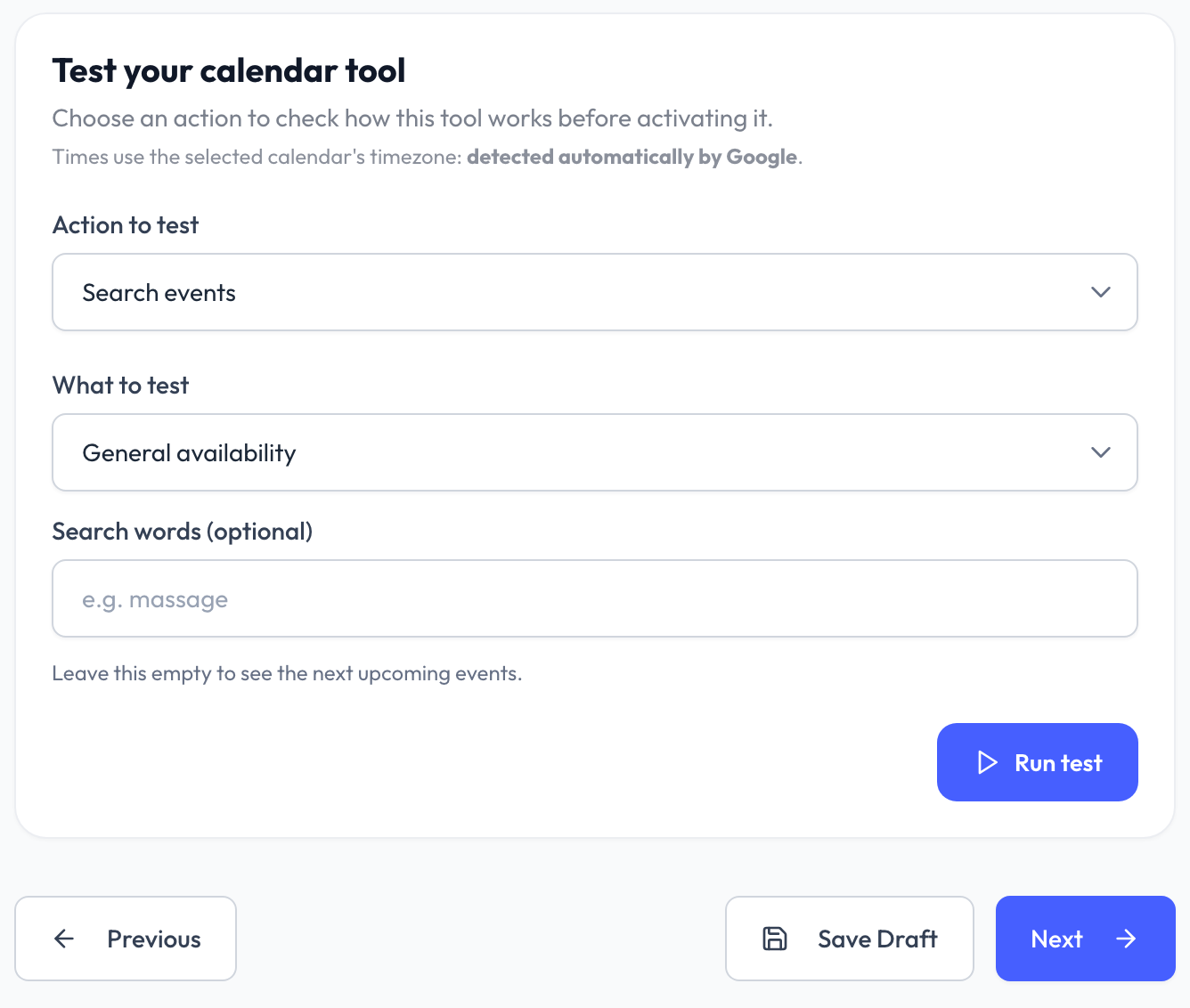
Click Run test. The result shows exactly what the bot will receive. Create, reschedule and cancel change your real calendar, so delete any test events afterwards.
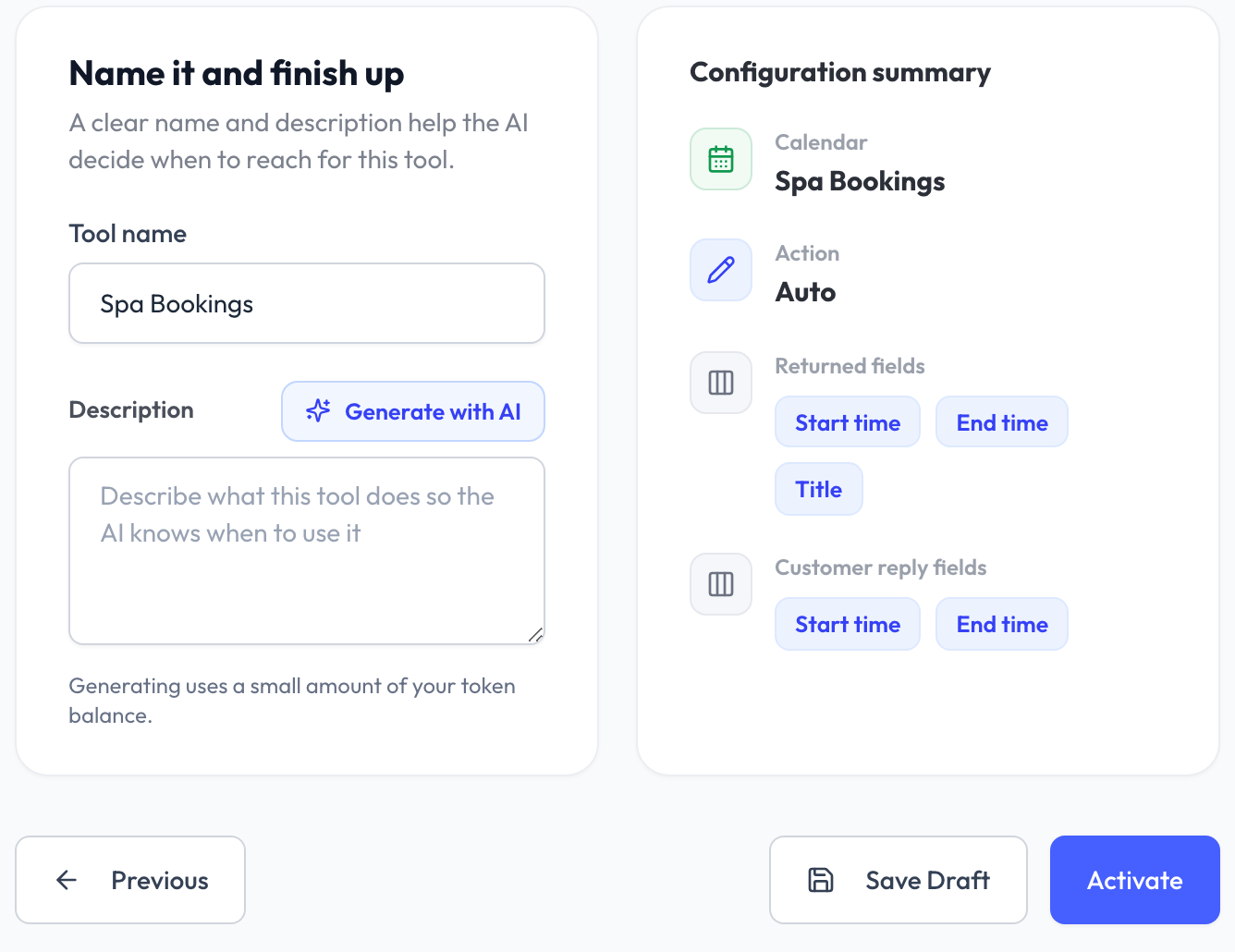
Step 4: Name and Activate
- Give the tool a clear Name, such as
Spa Bookings. - Write a Description that tells the bot when to use it, or click Generate with AI.
- Check the Configuration summary, then activate the tool.
- Test a full booking conversation in AI Playground before you go live.
Tell the Bot Your Booking Rules
Google Calendar allows two events at the same time, so the tool does not block a slot that already has a booking. The tool tells the bot how many bookings already run at that time. Your rules decide if that is full. Add them to your chatbot's training, for example:
We have 2 treatment rooms. A slot is full when 2 bookings already run at that time.
Each facial takes 1 hour. We open 10am to 7pm, closed on Mondays.
Always check the calendar before you offer a time.
If you only serve one customer at a time, say so: "Only one booking per time slot."
Common Questions
Last updated: 18 November 2026