

Notifications
Decide what reaches your inbox, and get told on your computer when a customer needs you.
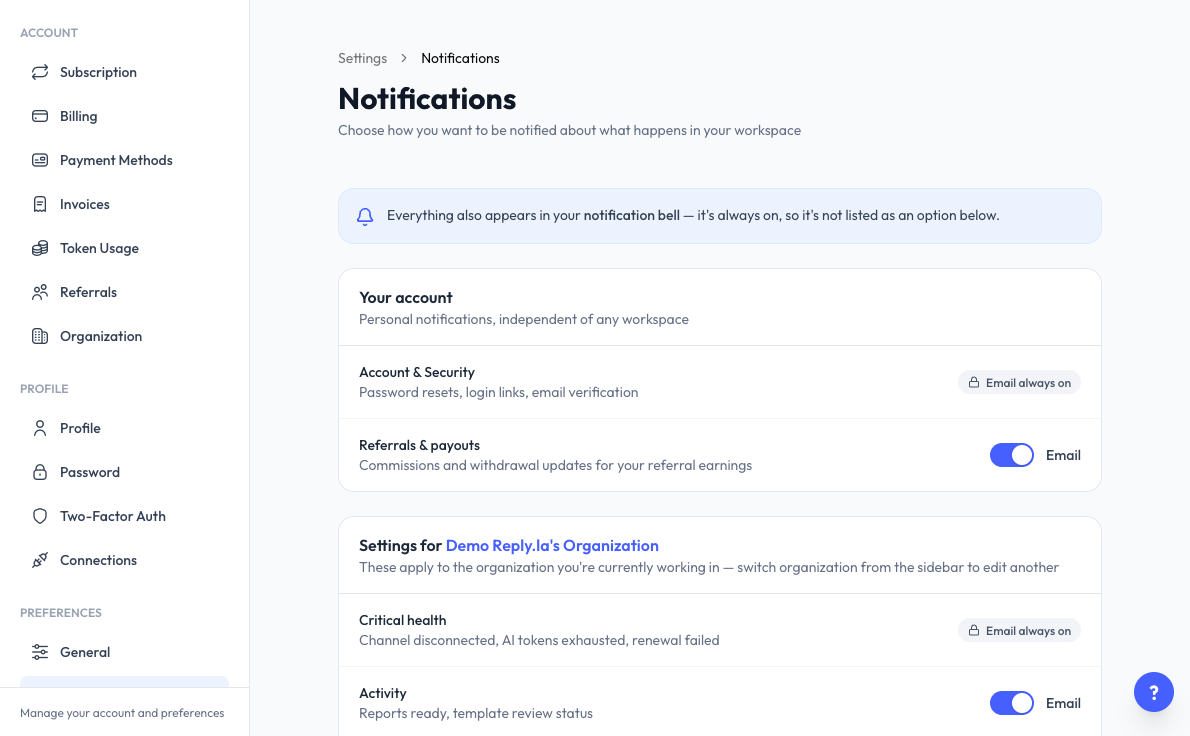
Open Notifications
Click Settings > Notifications.
Everything also appears in your notification bell. The bell is always on, so it isn't listed as an option.
Your Account
Personal notifications that don't depend on a workspace:
- Account & Security - Password resets, login links, email verification. Email is always on.
- Referrals & payouts - Commissions and withdrawal updates for your referral earnings. Switch Email on or off.
Settings for Your Organization
These apply to the organization you're currently working in. Switch organization from the sidebar to edit another.
- Critical health - Channel disconnected, AI tokens exhausted, renewal failed. Email is always on.
- Activity - Reports ready, template review status.
- Billing & subscription - Payments, invoices, renewals, plan and payment-method changes.
- Team & workspace - Invitations, member and role changes in your workspace.
Browser Alerts
Browser alerts tell you on your computer when a customer needs you, even when the app is closed. They are set in the Alerts for your organization card on this page.
Turn On Browser Alerts
- Switch Alerts on.
- Click Allow on this browser, then accept your browser's prompt.
Do this on each browser you want alerts on. Until at least one browser is allowed, nothing is delivered.
Choose What Alerts You
Under Messages, choose one:
- Only assigned to me - Takeovers you're assigned to, and replies in chats assigned to you. You can also tick:
- Chatbot is off - Paused for that customer, or off for the channel.
- New customer - Someone messaging for the first time.
- All messages - Every message from every customer.
Under Channels, tick A WhatsApp channel disconnects to be told when a device drops. This is also sent by email to the owner.
Switch off Show message text in alerts on shared screens. Alerts then leave out what the customer wrote.
Manage Your Browsers
Where alerts go lists every browser you have allowed. Click Rename to give one a clearer name, or Remove to stop its alerts until it is allowed again.
Common Questions
Last updated: 5 November 2026