

Unsubscribe List
The Unsubscribe list keeps people who don't want your campaigns away from your next blast, so you don't have to clean every list by hand.
Open the Unsubscribe List
Go to Blaster and click the gear icon at the top right. This opens Blaster Settings.
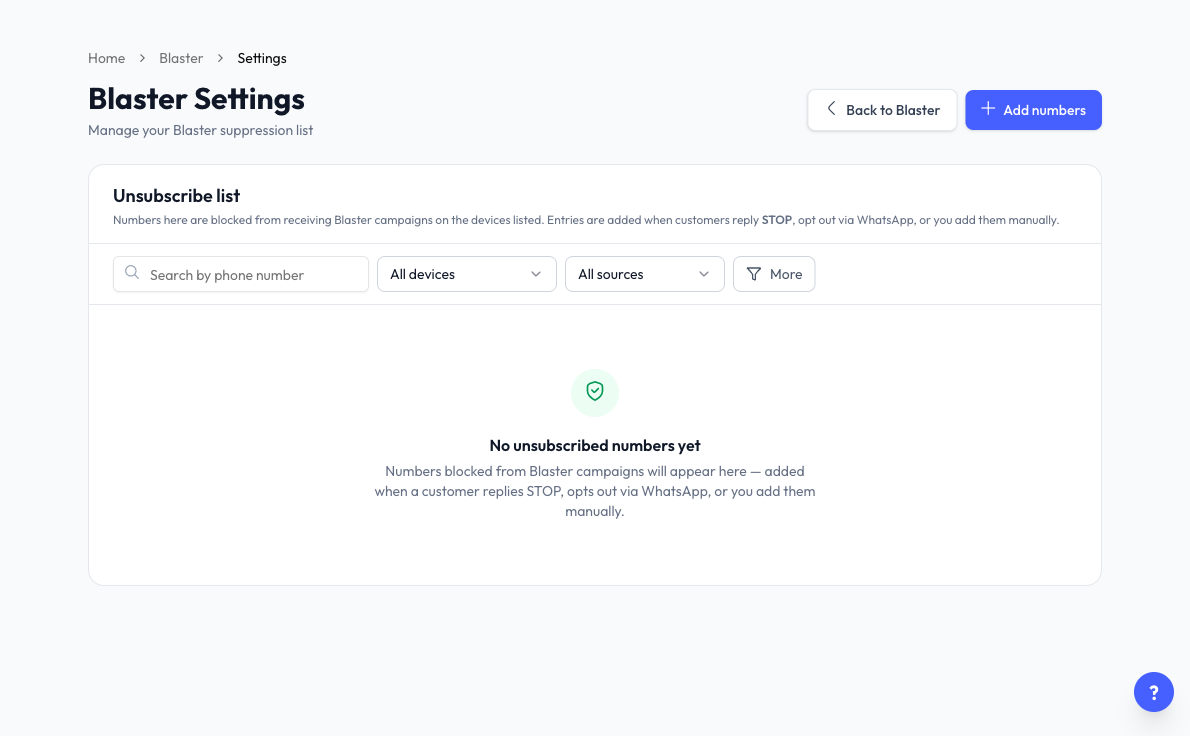
Numbers on this list are blocked from receiving Blaster campaigns on the devices listed.
How Numbers Get on the List
| Source | What it means |
|---|---|
| Replied STOP | The customer replied STOP to you. |
| WhatsApp opt-out | The customer opted out of marketing messages in WhatsApp itself. |
| Added manually | You or a teammate added the number. |
Find a Number
Use Search by phone number, All devices, and All sources to narrow the list. Click More to filter by the date the number was unsubscribed.
Add Numbers
- Click Add numbers.
- Under Apply to devices, choose the devices to block the contacts on.
- Pick the contacts. You can search, or use More to filter them.
- Click Add to list.
Selected contacts will not receive any Blaster campaigns from the chosen devices.
Remove Numbers
Click the remove icon on a row and confirm, or tick several rows and remove them together. Removed numbers start receiving marketing messages again, unless they also opted out in WhatsApp itself. Removing several rows cannot be undone.
What's Next?
Last updated: 5 November 2026