

Bulk Actions
Bulk actions save you from repeating the same job contact by contact. Tick the contacts you want, then assign labels, delete, or export them in one step.
Select Contacts
- Go to the Contact List. Use search and filters first if you only want some contacts.
- Tick the box beside each contact, or tick the box in the table header to select the whole page.
- To go beyond the current page, click Select all N matching. This link appears when every contact on the page is ticked and more match your filters.
A bar appears above the table showing how many contacts are selected. Your ticks stay as you move between pages. Click the X icon in the bar to clear them. When you have ticks on other pages, you can also click Deselect all.
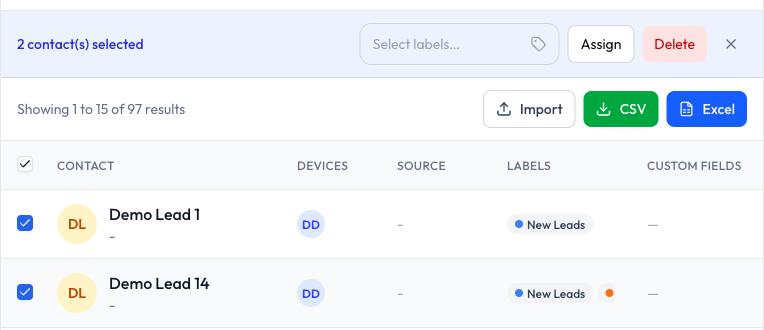
What You Can Do
Assign Labels
- In the bar, search for or create the labels you want.
- Click Assign.
Delete Contacts
- In the bar, click Delete.
- Confirm in the dialog.
Their conversations are kept, and anyone who messages you again returns with their history.
Export Contacts
With contacts selected, click CSV or Excel. Only the selected contacts are exported.
The 10,000 Limit
A bulk action can cover up to 10,000 contacts. Select all N matching stops at the first 10,000. If your selection goes over, the buttons are dimmed until you narrow your filter or remove some ticks.
Common Questions
Last updated: 5 November 2026