

Contacts Board
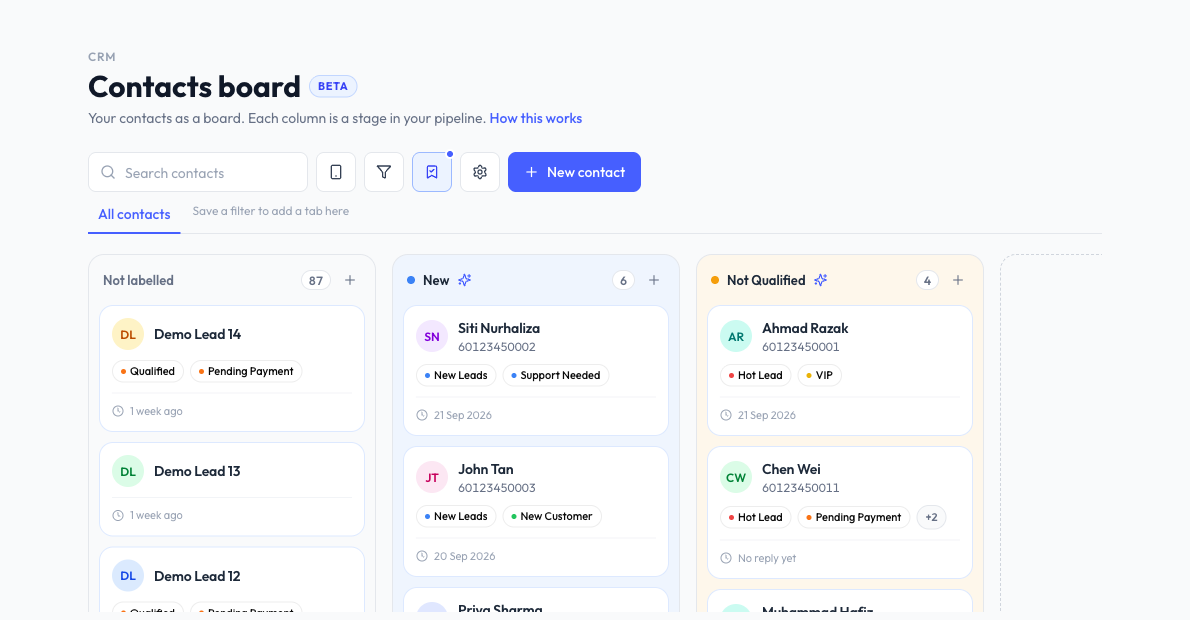
The Contacts board shows where every customer stands in your sale. Think of it like a whiteboard: each card is one customer, each column is one step of your sale, and the card moves right as the sale moves on.
If your account has the board but your plan doesn't include it, you see the message The CRM board is a Business plan feature with Upgrade to Business and Back to contacts. A Demo only banner means you are looking at sample data, not your own contacts.
Click How this works at the top of the board any time for a short walkthrough.
How the Board Works
- There is one board for your organization, and it holds all your contacts.
- Each contact stands in one column at a time.
- Not labelled is always the first column. It holds every contact you have not placed yet, so nobody gets lost.
Set Up Your Stages
- Click the gear icon to open Edit stages.
- Type a name in New stage name and click Add stage. Add one for each step of your sale, for example New enquiry, Quoted, Paid, Delivered.
- Under Moved here by, choose a label or Manual Assignment. See Let Labels Move Cards.
- Pick a colour for each stage. Drag the handle or use the arrows to change the order. The stage at the top is your leftmost column.
- Click Save stages.
You can have up to 5 stages. Not labelled does not count towards this.
Remove a Stage
Take a stage off the board in Edit stages, then click Save stages.
- A stage with contacts in it goes to Removed stages. The contacts stay in it, and Put back returns the stage with them.
- A stage with nobody in it is deleted when you save.
Move Cards
Drag a Card
Hold a card and drag it to another column. Only the column changes. Dragging does not change the contact's labels.
Let Labels Move Cards
Set a stage to follow a label, and tagging a customer with that label moves their card to that stage straight away. No need to move it yourself. For example, set the Paid column to follow your Paid label. Tag a customer Paid, and their card jumps to Paid.
- It only moves cards forward. A label won't pull a card back to an earlier stage.
- It works one way. Remove the label later and the card stays where it is.
- One label can move cards to one stage only.
A small AI icon beside a column name means your AI can add this label on its own, so contacts can arrive there without anyone moving them. To change which labels your AI can add, click Change which labels your AI can add in Edit stages. See Auto Label.
Read a Card
Each card shows the contact's name and number, their other labels, and when they were last active. A Needs reply tag means this contact messaged you last and the reply window is still open.
Click a card to open the contact panel. It shows:
- Last message
- What the AI remembers
- Stage history
- Label history
- Blasts
- Devices contacted
From the panel you can click Reply on WhatsApp or Open the full contact page.
Add a Contact
- Click New contact at the top, or the + on a column to add straight into that column.
- Fill in the contact's details. The Name is required.
- If you opened it from New contact, choose a Stage. Leave it on Not labelled if you are not sure yet.
- Click Add contact.
If Reply.la finds a similar contact, it shows You may already have this contact. Open one to check in a new tab, or carry on if this really is somebody new.
Search and Filter
Use Search contacts at the top, and the device button to show one device or all of them.
Click the filter icon to narrow the board by Chatbot, Lead source, or Added between. Click Clear filters to see everyone again.
Save a Filter
- Set the filters you want.
- Click the bookmark icon and enter a name in Name this filter.
- To open the board this way each time, tick Open the board with this every time.
- Click Save these filters.
Your saved filter appears as a tab beside All contacts. You can save up to 20. Saved filters belong to your organization, so your teammates see them too.
Common Questions
Last updated: 5 November 2026