

Settings
Payment Methods
Save the cards used for automatic renewals and Auto Reload, and choose your default.
Keep a valid card here so your subscription renews without you having to remember it.
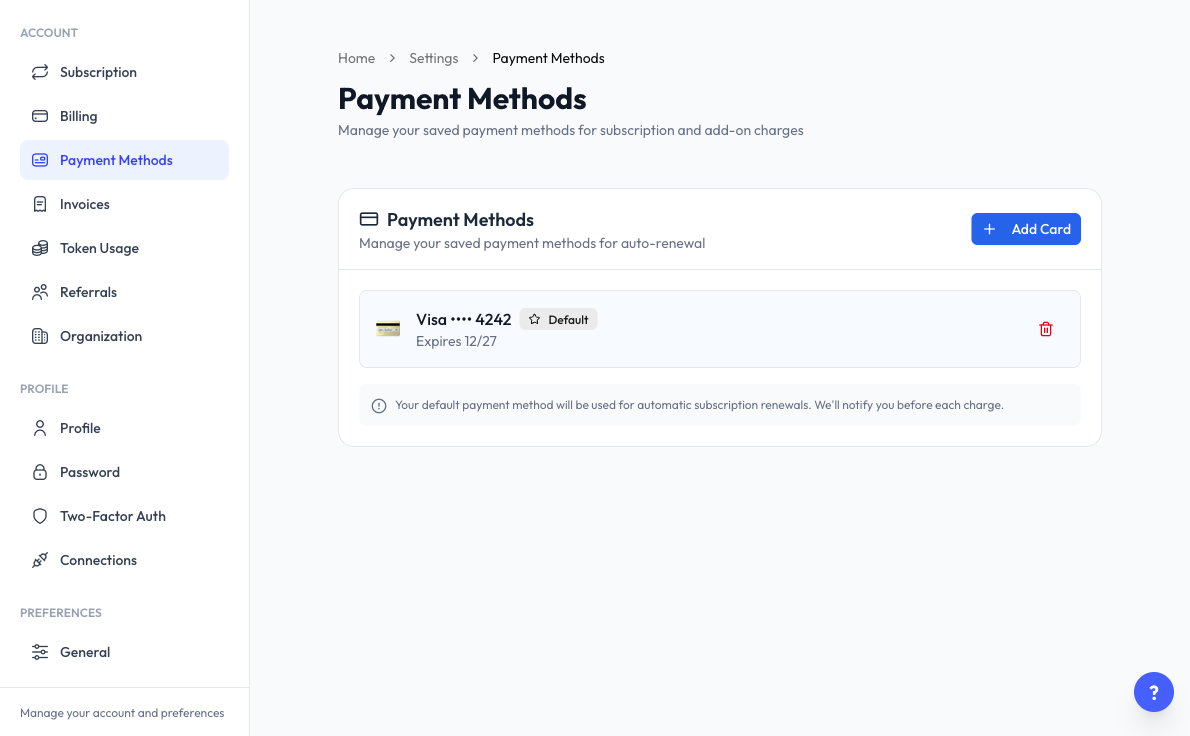
Open Payment Methods
Click Settings > Payment Methods. Only the organization owner sees this page in the Settings menu, and only the account owner can add a card or change the default.
Add a Card
- Click Add Card.
- Enter your card details on the secure payment page.
- You return to Reply.la, and the card appears in the list.
If you already have a default card, Reply.la asks whether to make the new card the default.
Choose Your Default Card
Your default payment method is used for automatic subscription renewals. Reply.la notifies you before each charge.
- Click Set Default on the card you want.
- Check the Change default card? message, then click Change card.
Auto Reload for AI tokens also charges your saved card.
Remove a Card
- Click the trash icon on the card.
- Click Remove to confirm.
Removing your default card turns auto-renewal off. Choose another default card and turn auto-renewal back on in Subscription.
What the Labels Mean
- Default - The card used for automatic renewals.
- Expiring Soon - The card is close to its expiry date.
- Expired - The card has passed its expiry date.
- Not set up for automatic charges - Remove the card and add it again to use it.
Common Questions
Automatic renewals will fail until you set a default. Click Set Default on a card, or add a new one.
Open Invoices.
Last updated: 5 November 2026