

Analytics
What Is the Analytics Page?
The Analytics page shows how each of your WhatsApp devices is performing. It answers questions like "How many new leads did we get this month?", "How many of them closed?", and "Which ads bring the most customers?".
Open it from Analytics in the sidebar, or click View analytics on the Dashboard once you've connected a device.
Choose What to View
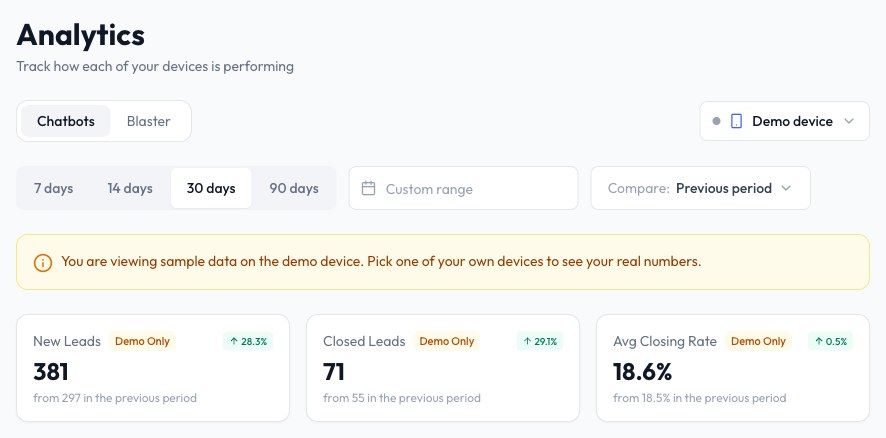
At the top of the page you can choose:
- Chatbots or Blaster - Switch between chatbot lead results and broadcast delivery.
- Device - Analytics is shown for one device at a time. Pick it from the device picker on the right.
- Date range - 7 days, 14 days, 30 days, 90 days, or a Custom range.
- Compare - Compare with the Previous period, the Same period last month, the Same period last year, or choose No comparison.
If the device you picked has no chatbot linked, you'll see a No chatbot linked warning. Click Link a chatbot to connect one, otherwise the chatbot numbers stay at zero.
Chatbots Tab
Summary Cards
- New Leads - New customers who messaged this device in the selected period.
- Closed Leads - Leads that reached your closing label.
- Avg Closing Rate - Closed leads divided by new leads.
Each card shows the change against the comparison period, for example "from 297 in the previous period".
Sales Funnel and Funnel Closing Rate
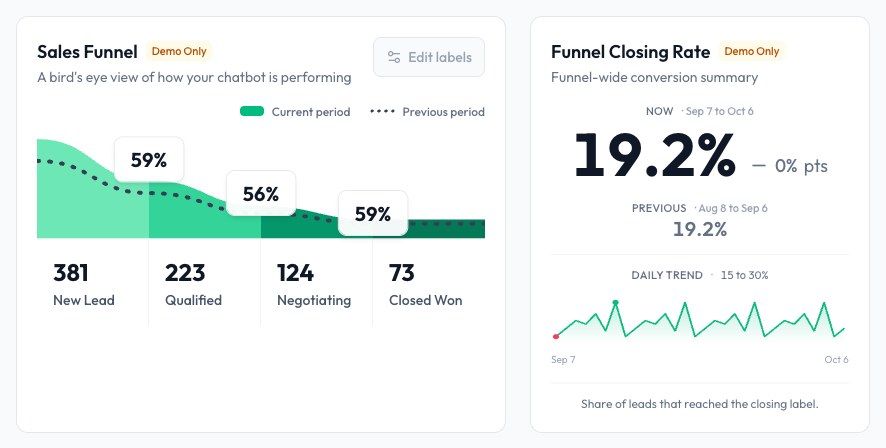
The Sales Funnel shows how many leads reached each stage, and the percentage that moved on to the next stage. The dotted line shows the comparison period you picked in Compare.
The funnel is built from your contact labels. Each stage counts the contacts that carry that label, so a lead only appears in the funnel after it is labelled, either by you or by Auto Label. This is why you can see new leads in the summary cards but an empty funnel.
Click Edit labels to choose which labels make up the funnel stages, in order. The last stage counts as your closing label. The funnel settings are saved for the chatbot linked to that device.
Funnel Closing Rate shows your current closing rate, the rate for the comparison period, and a Daily Trend chart of the share of leads that reached the closing label each day.
Lead Analytics
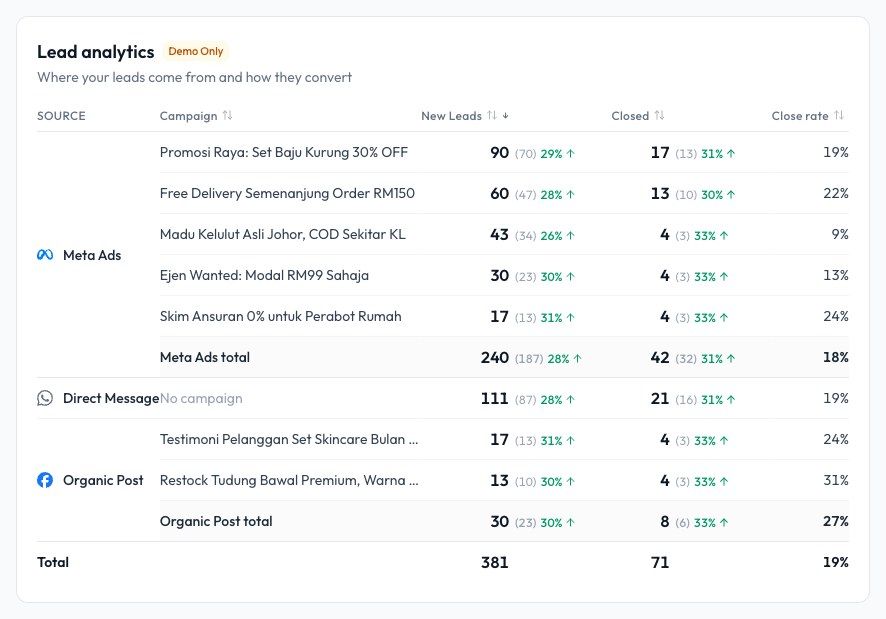
Lead analytics shows where your leads come from and how well each source converts. Leads are grouped by source:
| Source | What it means |
|---|---|
| Meta Ads | Customers who messaged you from a Click-to-WhatsApp ad, listed per ad campaign. |
| Organic Post | Customers who tapped the WhatsApp button on one of your Facebook or Instagram posts (not an ad). |
| Direct Message | Customers who messaged you directly, with no campaign. |
For each source and campaign you'll see New Leads, Closed, and Close rate, plus the change from the comparison period. Click a column header to sort the table.
Blaster Tab
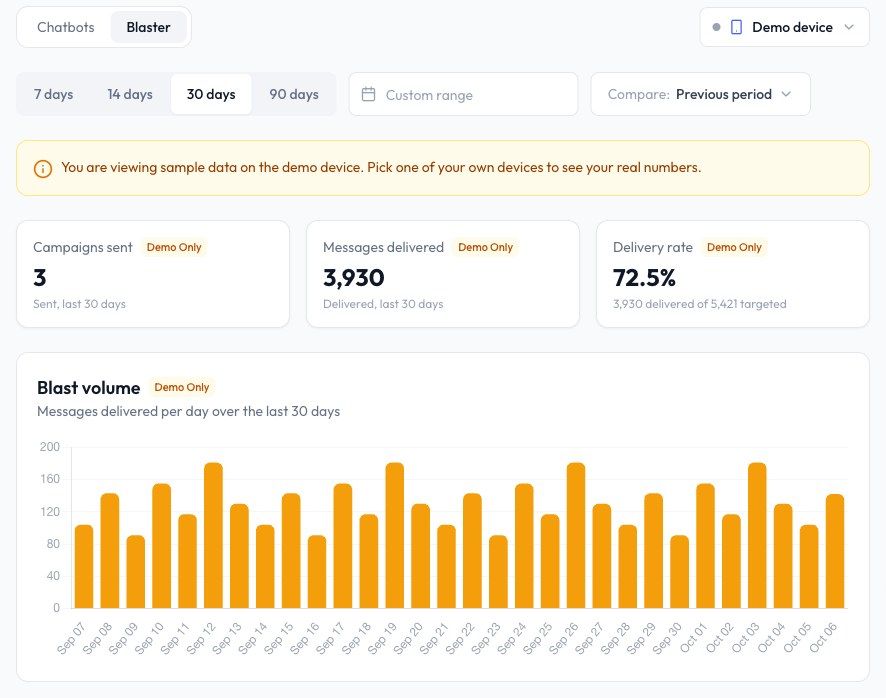
The Blaster tab shows broadcast results for the selected device:
- Campaigns sent - Campaigns sent in the selected period.
- Messages delivered - Messages that reached customers.
- Delivery rate - Delivered messages out of all targeted recipients.
- Blast volume - A chart of messages delivered per day.
For details on a single campaign, open it in Manage Campaigns.