
AI Settings
What Is AI Settings?
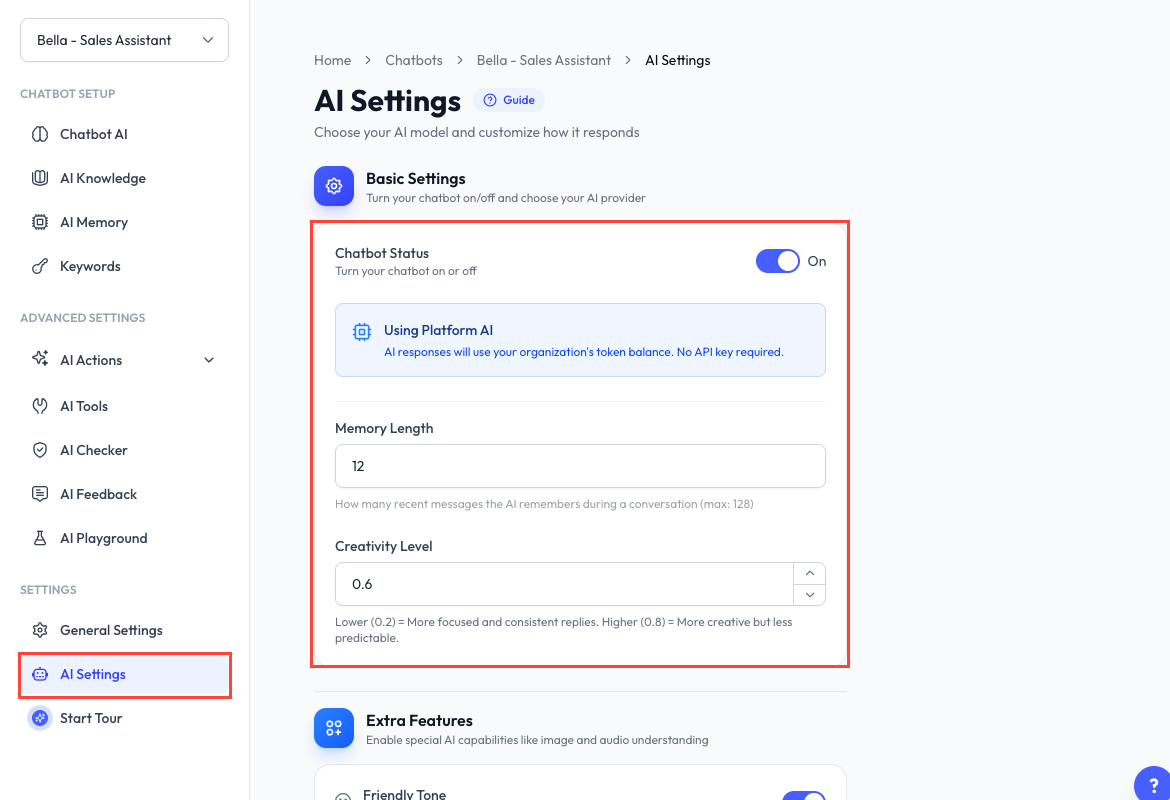
AI Settings controls how one chatbot uses ReplyLa's platform AI. Open Chatbot, select a chatbot, then choose AI Settings.
Basic Settings
Chatbot Status
Turn the chatbot on or off:
- On - The chatbot can reply on its connected device.
- Off - Automatic chatbot replies are disabled.
Platform AI
Your account uses Platform AI. AI requests deduct from the organization's token balance.
Memory Length
Choose how many recent messages the AI considers during a conversation. A larger value provides more context but can increase token use.
Creativity Level
Creativity controls how predictable or varied replies are:
- Lower values are more focused and consistent.
- Higher values are more varied but may be less predictable.
Use a moderate value for most customer-service chatbots, then test it in AI Playground.
AI Training Mode
When Guided training is available, choose:
- Guided - ReplyLa builds the prompt from structured Business Info, Language and Style, Closing Flow, FAQ, Constraint, and Custom Instruction sections.
- Custom - You write and maintain the raw Training Data and AI Behaviour prompt.
Switching modes shows a confirmation because it changes which editor maintains the prompt. ReplyLa can also offer to restore the previous Custom prompt after you have switched to Guided.
Extra Features
Available toggles include:
- Friendly Tone - Encourage warm, friendly replies.
- Strict Mode - Answer only from training data and AI Knowledge.
- Send Images & Videos - Allow media from the file library in replies.
- Understand Images - Analyze images sent by customers.
- Understand Voice Messages - Transcribe and understand voice notes.
- Privacy Mode - Hide manual Inbox replies from the AI's conversation context.
Some capabilities may depend on the active plan.
Save and Test
- Review each setting.
- Click Save.
- Open AI Playground and test realistic conversations.