

Inbox
The Inbox brings conversations from your connected WhatsApp devices into one workspace. You can monitor AI replies, take over a chat, send messages, and manage the contact without leaving the conversation.
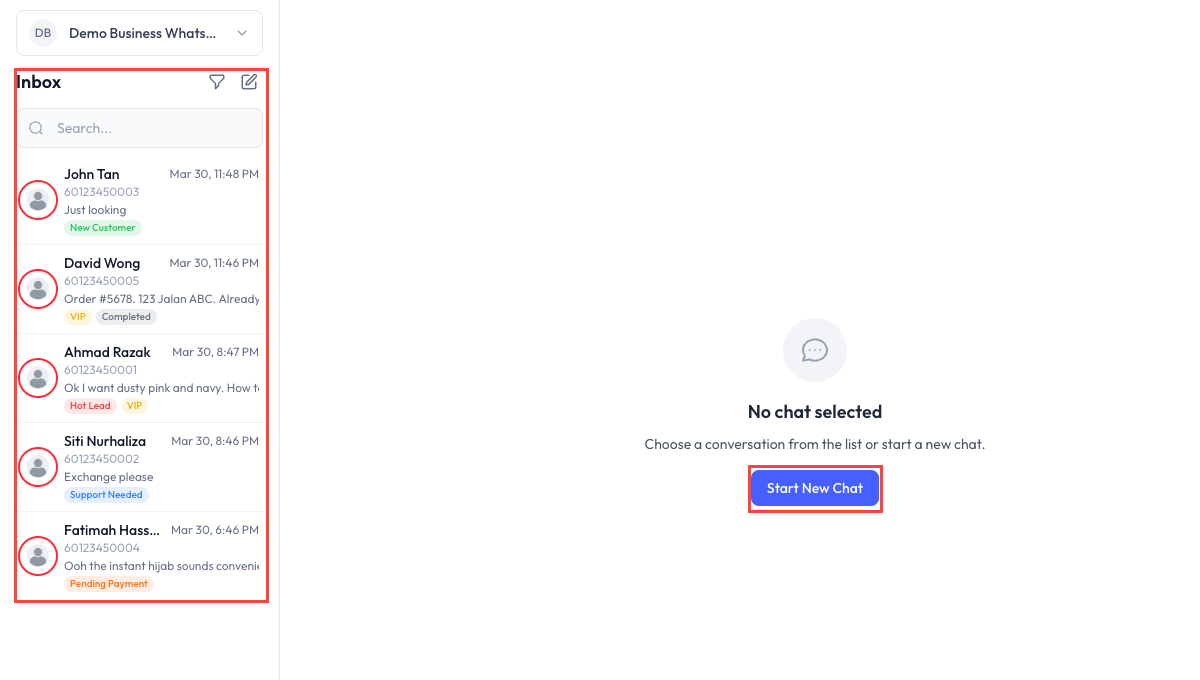
Inbox Layout
On desktop, the Inbox uses three panels:
| Panel | What it contains |
|---|---|
| Conversation list | Recent chats, contact details, last message, labels, and unread state. |
| Chat | Message history, AI controls, and the message composer. |
| Contact details | Profile, assignment, memory, notes, usage, and conversation metrics. |
The layout changes to a single-panel view on smaller screens.
Find a Conversation
Use search to find a contact by name or phone number. The filter panel supports:
- A specific WhatsApp device or chatbot.
- All, Assigned to me, Unassigned, or Unread.
- All conversations or only those with an active WhatsApp messaging window.
- One or more contact labels.
Select a conversation to open its message history.
Reply to a Customer
Type a message in the composer and send it. You can also:
- Reply to a specific message.
- Record a voice message.
- Upload an image, video, audio file, or document.
- Choose an existing file from File Manager.
- Share a location.
- Send an approved WhatsApp template.
The composer shows the messaging-window status. When the customer-service window is closed, use an approved template instead of a free-form message.
Pause or Resume AI
Use the AI control in the conversation header to pause or resume automatic AI replies for that contact. The control shows whether AI is currently running or paused.
Sending a manual reply does not replace this control. Pause AI explicitly when a team member needs to handle the conversation without automatic replies.
AI-generated messages are identified in the conversation, helping you distinguish them from customer and manual messages.
Start a New Conversation
Click New Conversation or Start New Chat. The four-step flow is:
- Select Device - choose the connected WhatsApp device that will send the message.
- Select Recipient - choose an existing contact or enter a new phone number.
- Select Template - choose an approved template and provide required header media if applicable.
- Review & Send - check the device, recipient, template, resolved variables, and message preview before sending.
WhatsApp requires an approved template to initiate a conversation. Template messages may also incur Meta charges.
Labels, Assignment, and Knowledge
- Add or remove contact labels from the conversation.
- Assign the conversation to a team member, or leave it unassigned.
- Select useful messages and choose Add to AI Knowledge to turn the content into a knowledge entry for the connected chatbot.
Contact Details
Open the details panel to manage and review:
- Profile - name, phone number, email, and connected device.
- Assignment - the team member responsible for the conversation.
- Memory - information currently stored in the chatbot's working memory.
- Notes - private notes added by your team.
- Actions - clear recent conversation context or clear stored working memory.
- Usage - AI token usage, estimated AI cost, and estimated WhatsApp API charges where available.
- Conversation Metrics - counts of AI, manual, and customer messages.
Cost values in the Inbox are estimates. Use Token Usage for your organization's overall token allocation and history.