

AI Tools
What Are AI Tools?
AI Tools let your chatbot perform tasks beyond answering from its knowledge base. Depending on the tool templates available to your account, it can look up or update business data, perform calculations, and communicate with an external service.
Common tool templates include:
| Tool | Example use |
|---|---|
| Google Sheets | Look up a product, record an order, or update an existing row. |
| Google Contacts | Access contact information from a connected Google account. |
| Calculator | Calculate totals, discounts, quantities, or delivery fees. |
| Custom API | Send an HTTP request to an external system. |
The templates shown under Create New Tool are the ones currently available to your account.
Add a Tool
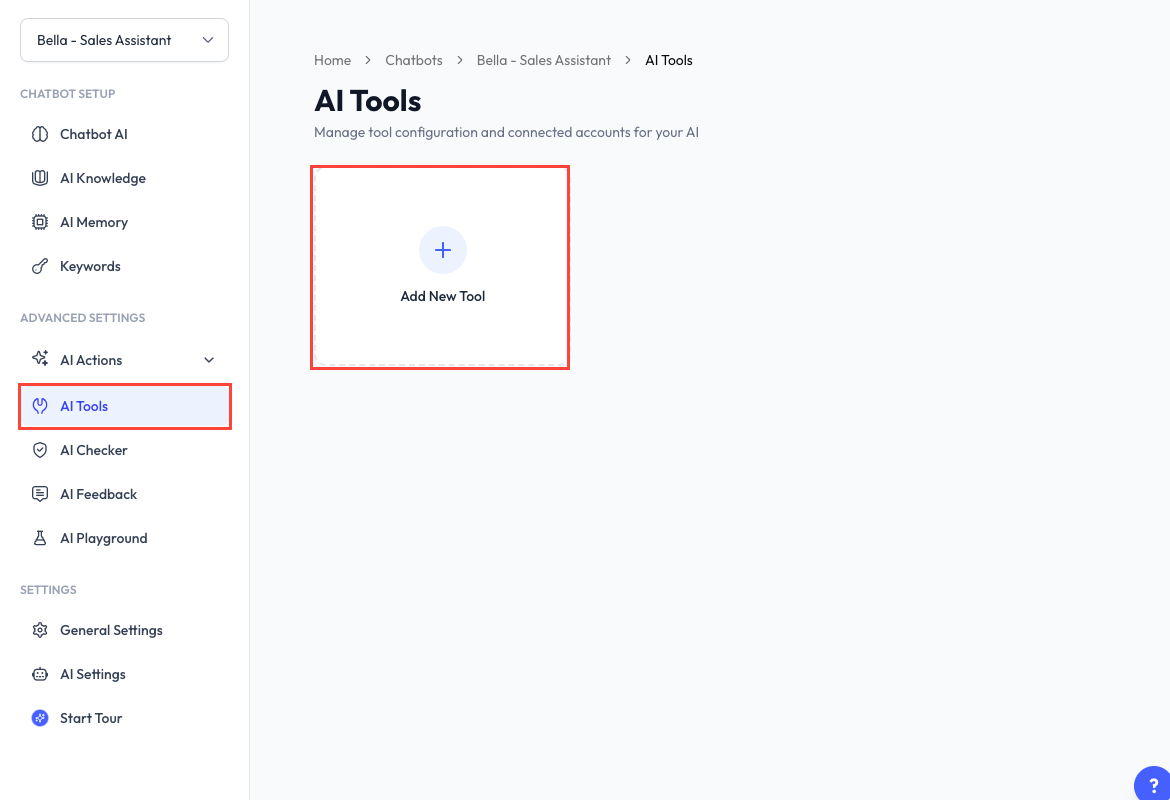
- Open Chatbot, select a chatbot, and go to AI Tools.
- Click Add New Tool.
- Select a tool template.
- Complete the configuration required by that tool.
- Save or activate it.
Give every tool a clear name and description. The description helps the AI decide when it should use the tool.
Configure Google Sheets
Google Sheets uses a four-step setup flow:
- Connect - Start a new Google Sheets connection or reuse one already connected to ReplyLa. Then choose a spreadsheet and sheet tab.
- Configure - Choose an action and map the relevant sheet columns.
- Test - Enter sample values and run an optional test.
- Finalize - Review the configuration, name the tool, write its description, and activate it.
You can save an unfinished Google Sheets setup as a draft.
Google Sheets Actions
| Action | What the AI can do |
|---|---|
| Auto | Add new entries, find existing rows, and update matching records. When it finds a match, it updates the row instead of creating a duplicate. |
| Read only | Read information without changing the sheet. Choose Read All or Lookup by a mapped column. |
| Write | Append new rows without looking up or changing existing records. |
| Update | Find a matching row using the selected search column, then change its mapped fields. |
Map Columns
Map only the columns required for the selected action. Clear column names and descriptions help the AI pass the correct values.
For read and auto configurations, your account may also show Filter result. Use it to choose which columns the AI receives, describe what each column means, and set Max Rows to Return. If left empty, the default is 20 rows.
Test Before Activating
Use the tool's test step where available, then test the full customer conversation in AI Playground. Confirm that lookups find the intended row and that write or update actions change only the expected columns.
Manage Tools
The AI Tools page shows each tool's type, name, description, and status.
- Use the switch to make a configured tool Active or Inactive.
- Click Manage to change its configuration.
- Delete a tool only when it is no longer needed. Deletion cannot be undone.
- Reconnect a Google account if ReplyLa reports that the connection has expired or been revoked.