

Auto Follow-Up
Auto Follow-Up lets your chatbot send a sequence of messages after a delay. You can follow up when a customer does not respond or when the conversation meets a custom condition.
Rules and Activities
The Auto Follow-Up page has two tabs:
- Rules - create, edit, enable, disable, and delete follow-up rules.
- Activities - review scheduled, sent, failed, and cancelled follow-ups.
Create a Follow-Up Rule
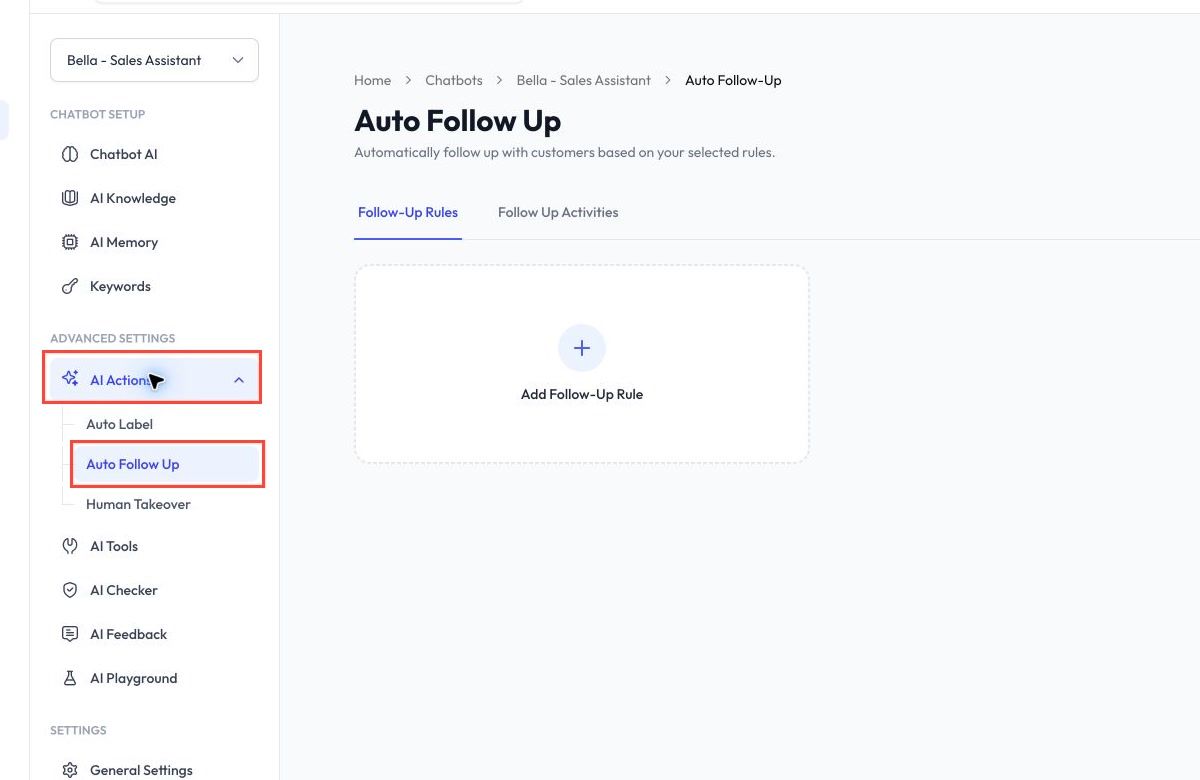
- Open your chatbot and go to AI Actions > Auto Follow-Up.
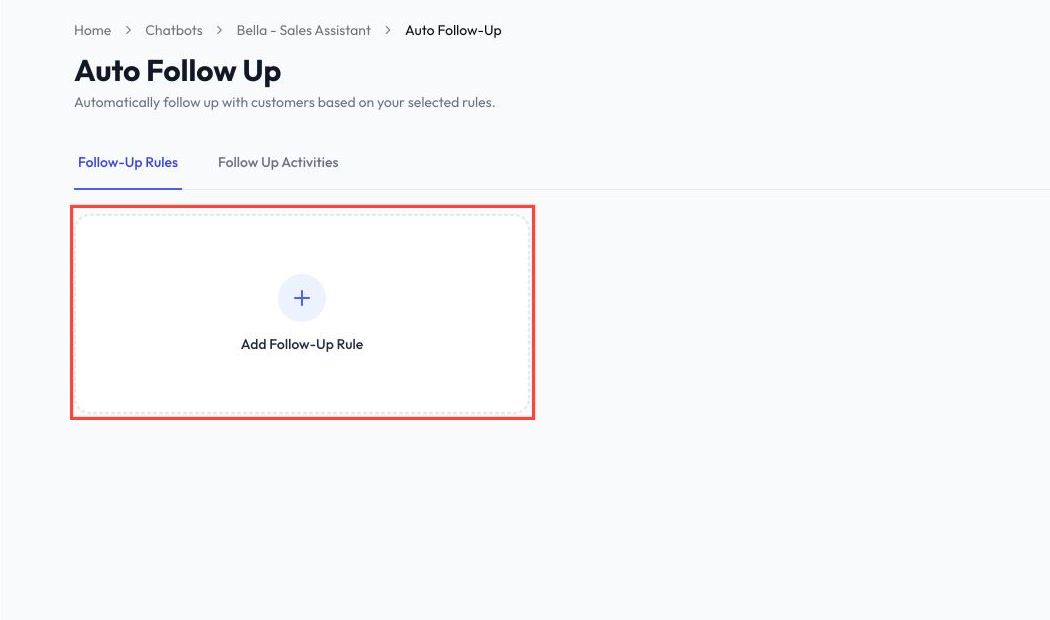
- Click Add Follow-Up Rule to open the workflow editor.
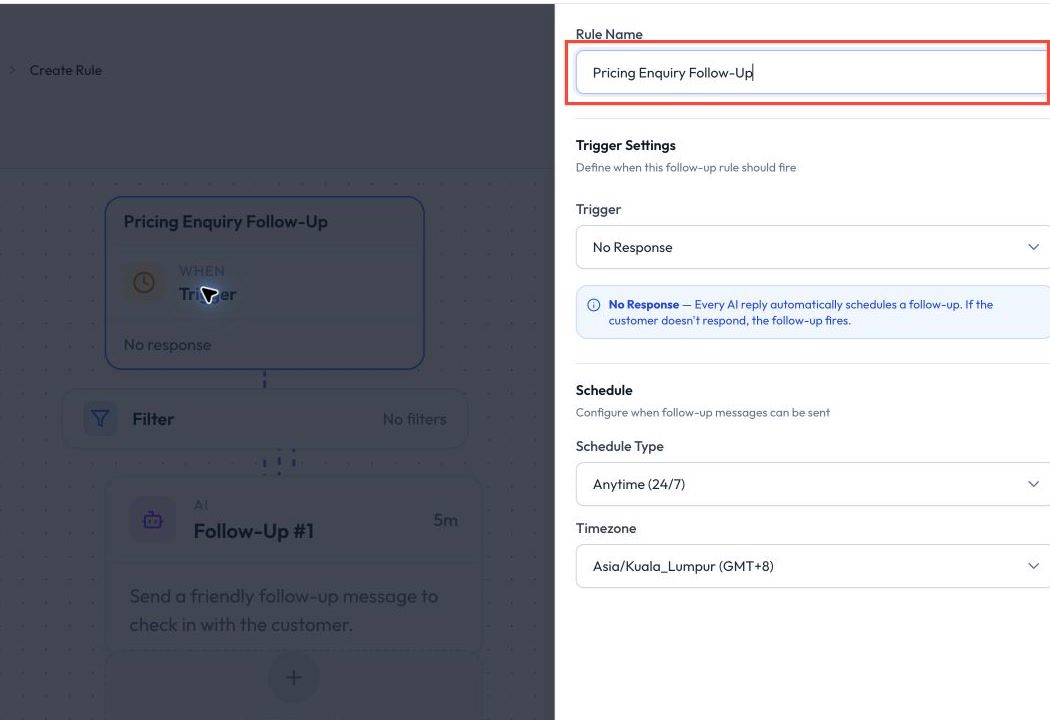
- Open the Trigger panel and enter a rule name.
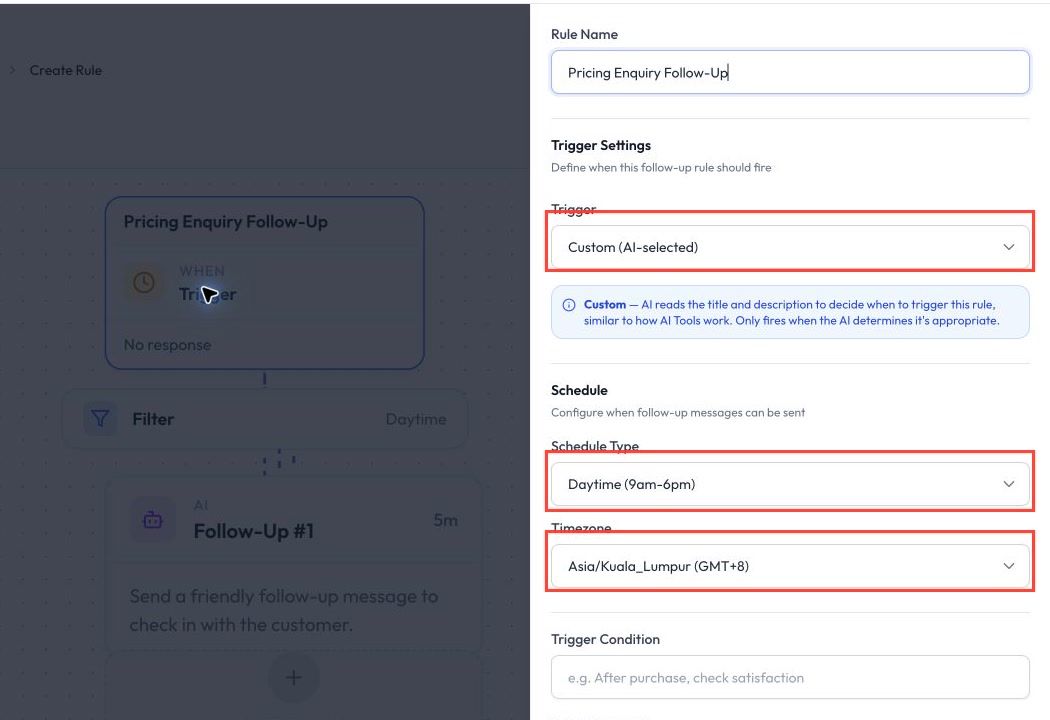
- Choose a trigger type and configure its schedule and timezone.
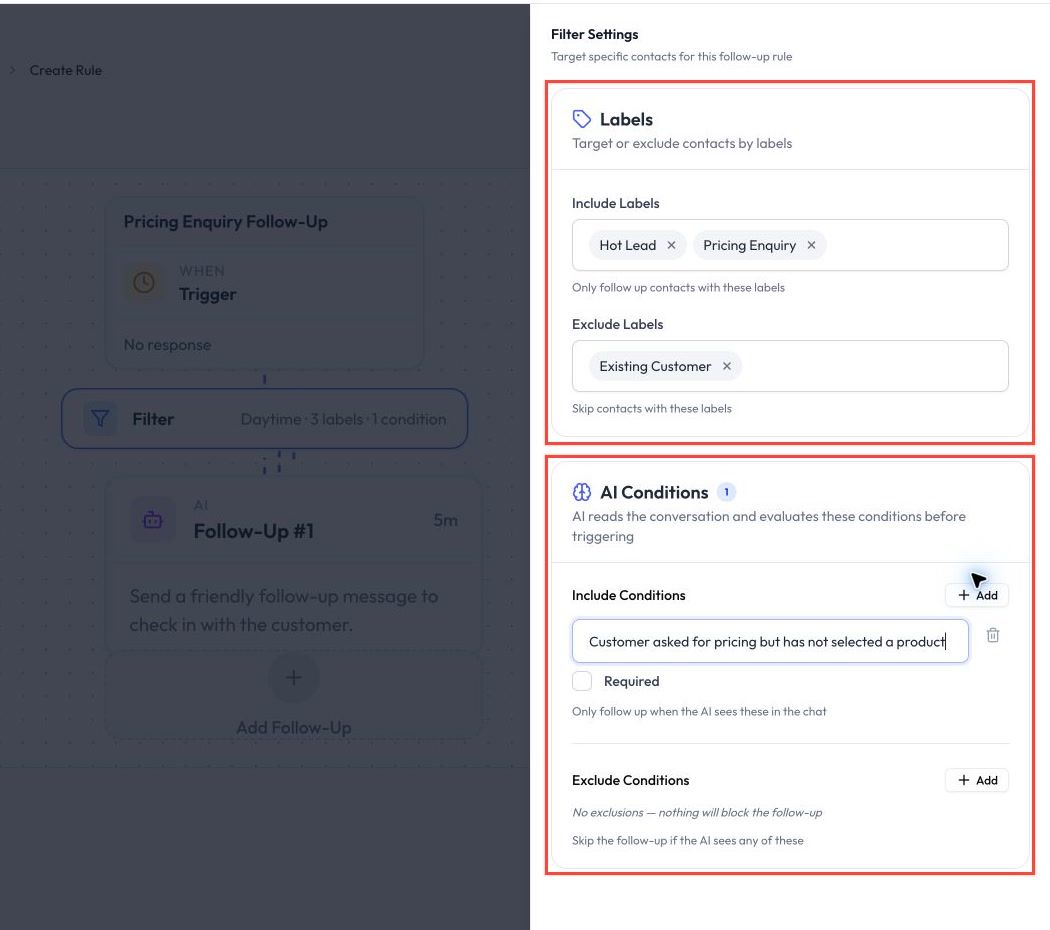
- Open Filter and add any label or AI-condition filters you need.
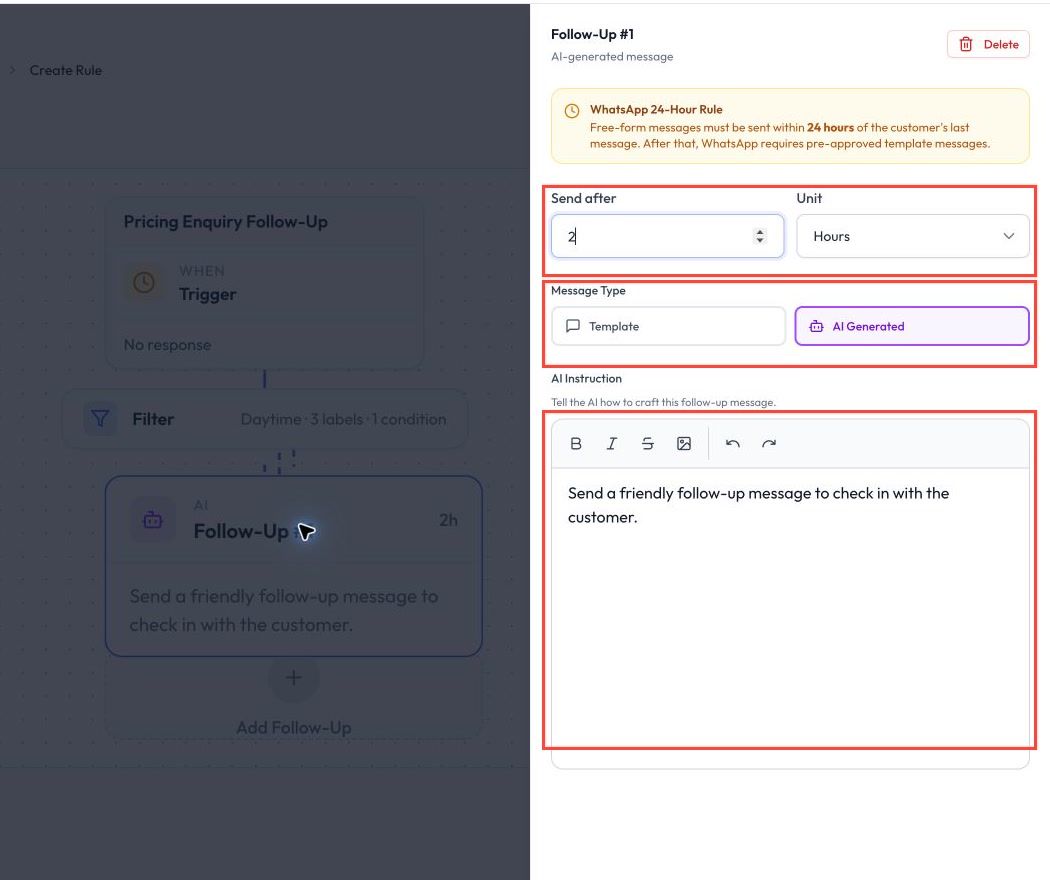
- Open a follow-up step, set its delay, choose AI Generated or Template, and configure the message.
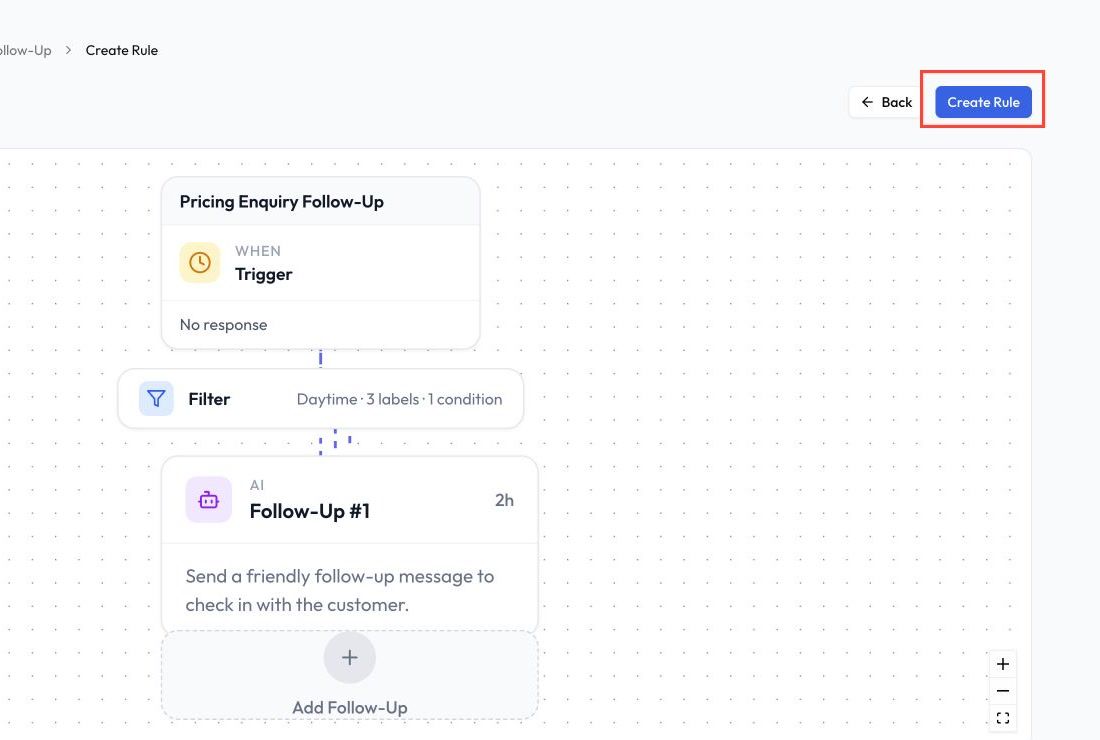
- Review the complete workflow, then click Create Rule.
Trigger Types
No Response
The rule is scheduled after an AI reply. If the customer replies before the delay ends, the scheduled follow-up is cancelled.
Only one No Response rule can be active for a chatbot.
Custom
Describe the situation in which the rule should run. ReplyLa uses the conversation context to decide whether the condition is met.
Use a clear title and description. For example, you can follow up when a customer asks for pricing but does not complete the next step.
Schedule and Filters
Choose when the rule is allowed to run. Depending on the rule, you can set a timezone and restrict delivery to selected hours.
Filters help narrow the audience:
- Include labels - the contact must have at least one selected label.
- Exclude labels - contacts with these labels are skipped.
- Include AI conditions - the conversation must meet the conditions you describe.
- Exclude AI conditions - the conversation is skipped when a described condition is met.
AI conditions are optional. Each include or exclude group supports up to 10 conditions.
Build the Follow-Up Sequence
Add one or more steps and set the delay in minutes, hours, or days. Later steps must occur after the earlier steps.
Each step can use one of these message types:
- AI Generated - provide instructions and ReplyLa generates the message from the conversation context.
- Template - choose an approved WhatsApp template from the connected device.
You can reorder or remove steps before saving. The maximum number of rules and steps depends on your subscription plan.
WhatsApp's 24-Hour Window
Free-form AI messages can only be sent while the WhatsApp customer-service window is open. If a step may run outside the 24-hour window, use an approved WhatsApp template. ReplyLa prevents AI-generated steps from being scheduled too close to or beyond that limit.
Manage Rules
Each rule card shows its trigger, first delay, filters, and number of steps. From the card you can:
- Enable or disable the rule.
- Open Manage to update its trigger, filters, schedule, or sequence.
- Delete the rule when it is no longer needed.
Disabling a rule stops it from scheduling new follow-ups.
Review Activities
Open the Activities tab to monitor follow-up delivery. The summary cards show the number of pending, sent, failed, and cancelled activities.
You can search for a contact, filter by status or date, and open a contact's timeline to review each follow-up attempt.
Before You Enable a Rule
- Keep each follow-up focused on one next action.
- Use delays that match your sales or support workflow.
- Check label filters carefully so existing customers are not contacted unnecessarily.
- Use approved templates for steps that may be sent after 24 hours.
- Test the rule with an internal contact before using it broadly.