
Auto Label
Auto Label lets the chatbot assign contact labels based on the meaning of a conversation. Each rule pairs a label with a plain-language condition.
Create Label Rules
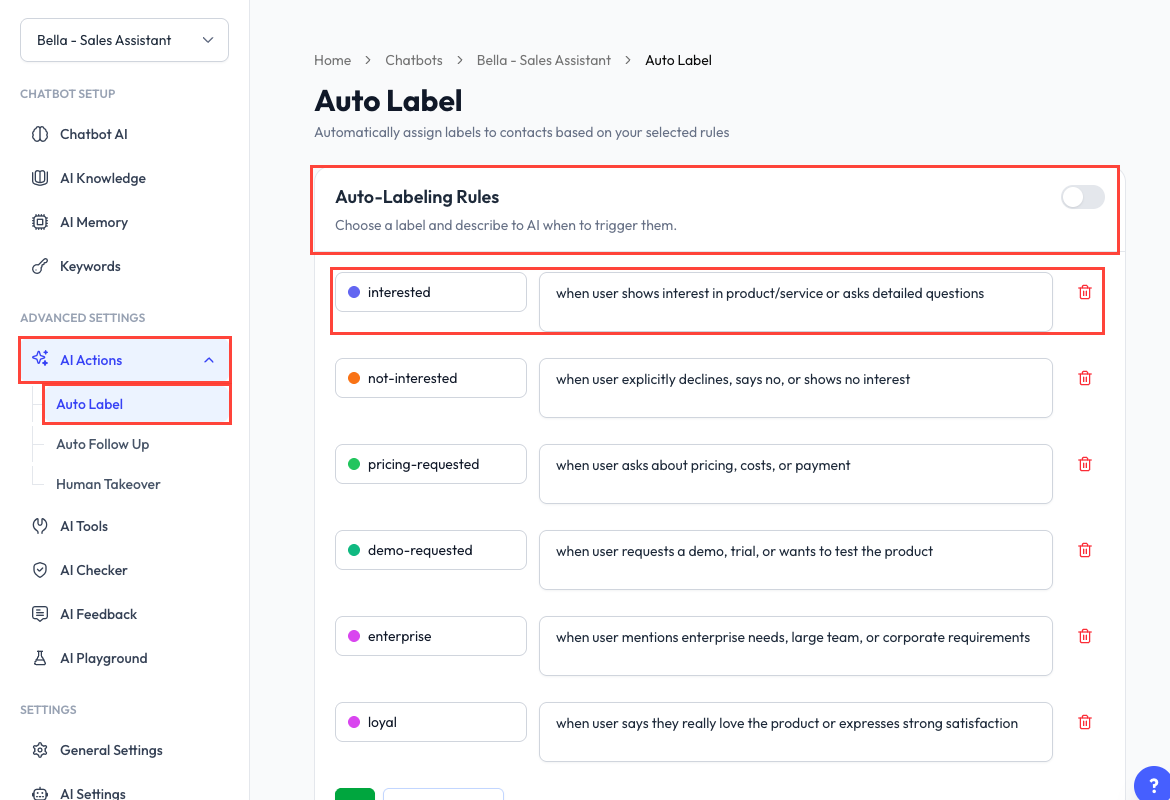
- Open a chatbot and go to AI Actions > Auto Label.
- Turn on Auto-Labeling Rules.
- Select an existing label or create a label for the rule.
- Describe when AI should apply it.
- Use the plus button to add more rules.
- Save the page.
The same label cannot be used twice in one chatbot's rule list. If a label is also used by another chatbot, ReplyLa shows that usage below the label selector.
Write Clear Conditions
Describe the customer signal, not just a keyword. For example:
| Label | Condition |
|---|---|
| Interested | Customer asks detailed questions or says they are interested in the product. |
| Pricing requested | Customer asks about price, payment, or available packages. |
| Support needed | Customer reports a problem or asks for help with an existing order. |
| Not interested | Customer clearly declines or asks not to continue. |
Keep conditions distinct. Overlapping conditions can cause more than one label to be applied to the same contact.
Add with AI
Click Add with AI to analyze the chatbot's current training, AI behaviour, existing labels, and sales flow. The analysis can:
- Suggest new label rules.
- Improve the wording of existing conditions.
- Identify rules that may no longer fit the chatbot.
Review every suggestion before adding, applying, or removing a rule. Running the analysis uses platform tokens.
Deal Outcomes
Use the Deal Outcomes section to group existing labels as:
- Closed - labels that mean a deal completed successfully.
- Cannot Closed - labels that mean a deal could not be completed.
You can assign multiple labels to each outcome. A label cannot belong to both outcome groups at the same time.
Correct a Label
If AI applies the wrong label:
- Remove or change the label in Inbox or Contacts.
- Return to Auto Label and make the condition more specific.
- Save and test the revised rule with a realistic conversation.
Auto Label applies at chatbot level. To stop new automatic labels, turn off Auto-Labeling Rules and save.
Video Walkthrough
The video below explains the feature. Some controls may appear in an older position than in the current interface.