

General Settings
Use General Settings to manage the chatbot's basic information, connected device, reply schedule, welcome message, and administrative controls.
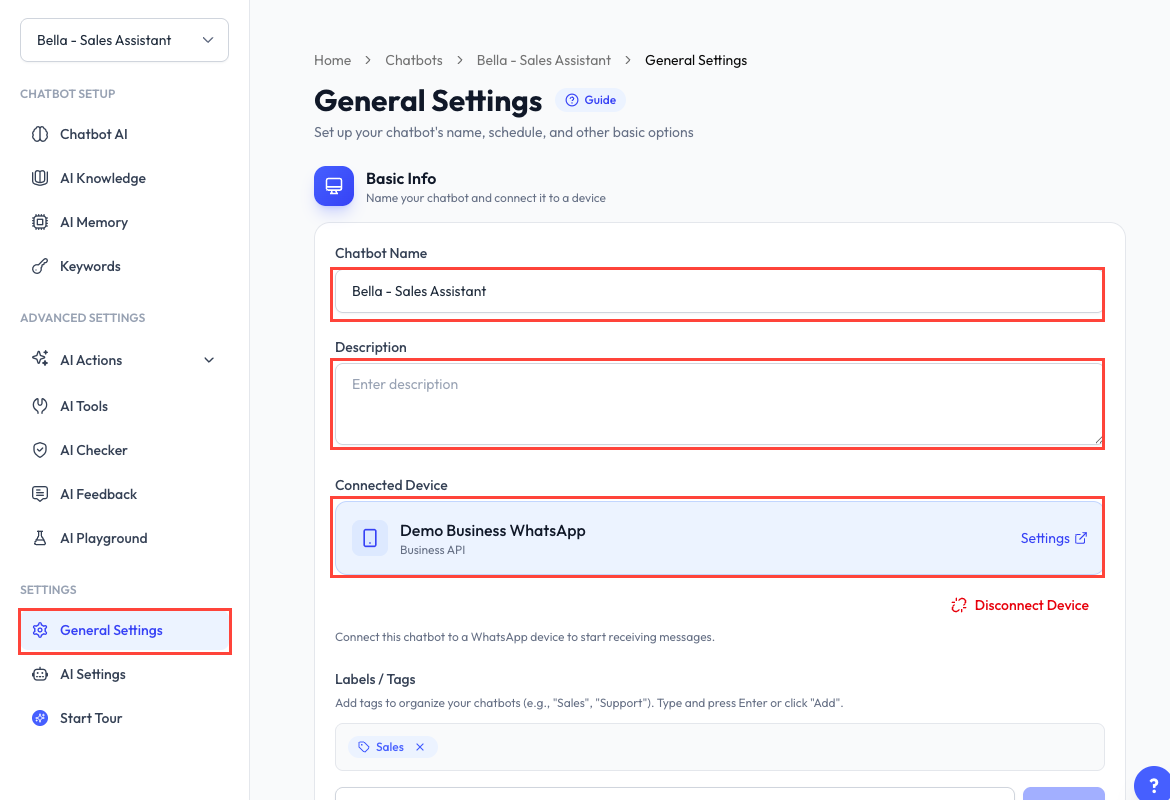
Open Chatbots, select a chatbot, then choose General Settings.
Basic Info
Name, Description, and ID
The chatbot name and description are for organizing your workspace. They do not change the display name of your WhatsApp Business account.
Use Copy Chatbot ID when an integration or support request needs the chatbot's unique ID.
Connected Device
A chatbot needs a connected WhatsApp device to receive and reply to live messages.
- Select an available device and click Connect.
- Open Settings beside the connected device to manage it.
- Click Disconnect Device to remove it from the chatbot.
Disconnecting a device clears its AI conversation memory, pending follow-ups, flagged queries, and welcome-message cooldowns. Message history remains available for reference. Review the confirmation summary before continuing.
One device can be connected to only one chatbot at a time. If you move a device, it is disconnected from the previous chatbot.
Labels and Tags
Add labels such as Sales or Support to organize your chatbots. Type a label and press Enter or click Add. You can also select from existing label suggestions.
Timing and Schedule
Reply Delay
Set how long ReplyLa waits before preparing a reply. A short delay can combine messages that a customer sends in quick succession. The supported range is 0 to 25 seconds; 2 to 3 seconds is a practical starting point.
Message Limit
Set the maximum number of messages one person can send within a time window. This helps prevent repeated messages from overwhelming the chatbot.
Working Hours
Enable Working Hours to restrict automatic replies to selected days and times. Configure:
- Active days.
- Start and end time.
- Timezone.
- The after-hours message sent outside the schedule.
Typing Effect
Choose an effect type and duration to show a typing or presence indicator before the reply is sent. The maximum duration is 25 seconds.
Welcome Message
Enable the welcome message to greet customers when they first message the chatbot.
Set the message text and a Wait Period from 1 to 365 days. The same customer will not receive the welcome message again until that period has passed.
Owner Controls
Quick Control lets approved owner phone numbers control the chatbot from WhatsApp:
- /stop turns the chatbot off.
- /start turns it on.
- /status checks its current status.
Add each authorized phone number and customize the reply returned for each command. Do not add customer or staff numbers that should not have chatbot-control access.
Save to Library
Click Save Template to store the chatbot configuration in your template library. You can use that template when setting up another chatbot.
Custom Variables
Custom variables store values that can be reused in this chatbot's AI prompts.
- Click Add Variable.
- Enter a name using letters, numbers, and underscores.
- Add a display label and choose Text or Paragraph.
- Optionally enter a default value and description.
- Create the variable, then insert its displayed variable tag in your prompt.
Variables belong to this chatbot. You can edit or delete them from the Custom Variables table.
Save Your Changes
Use the page's Save action after changing general settings. ReplyLa warns you if you try to leave with unsaved changes.
Danger Zone
Users with delete permission can permanently delete the chatbot. This also deletes its chatbot data and conversations, so confirm that the chatbot is no longer needed before continuing.