

Settings to Control Your Costs
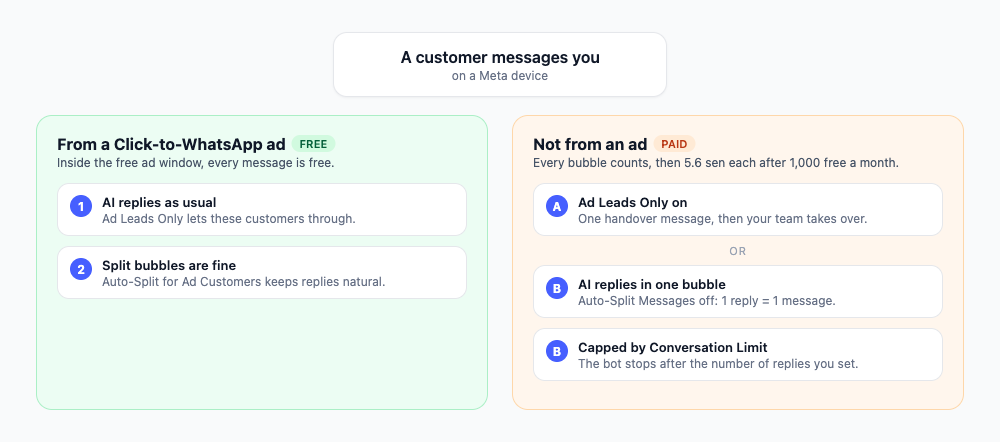
From 1 October 2026, Meta charges for every bubble you send outside a free window. See WhatsApp Pricing from 1 October 2026 for the full details.
Reply.la added three chatbot settings to help you keep those charges under control:
| Setting | Where to find it | What it saves |
|---|---|---|
| Auto-Split for Ad Customers | AI Settings | Sends one bubble per reply to customers who are not in a free ad window |
| Conversation Limit | General Settings | Caps how many replies the bot sends to one customer |
| Ad Leads Only | General Settings | Lets the AI reply only to customers from your Click-to-WhatsApp ads |
1. One Bubble for Non-Ad Customers
By default, the AI splits a long reply into a few short bubbles so it feels natural. Each bubble is one message, so one answer in 3 bubbles costs 3 times as much as one bubble.
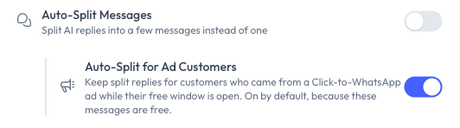
Auto-Split for Ad Customers lets you keep split bubbles where they are free and send one bubble everywhere else:
- Customers who came from a Click-to-WhatsApp ad, while their free ad window is open, still get split bubbles. These messages are free.
- Everyone else gets each reply as one bubble.
How to Set It Up
- Open your chatbot and go to AI Settings.
- In Extra Features, turn off Auto-Split Messages.
- Auto-Split for Ad Customers appears below it. Leave it on. It is on by default.
- Click Save Changes.
How Much It Saves
A customer who is not from an ad asks "Do you have size L?":
| Reply | Bubbles | Cost after your 1,000 free messages |
|---|---|---|
| Auto-Split on | 3 | 16.8 sen |
| Auto-Split off | 1 | 5.6 sen |
This setting changes AI replies only. Keyword replies send each step in their sequence as its own bubble, so keep keyword sequences short too.
2. Conversation Limit
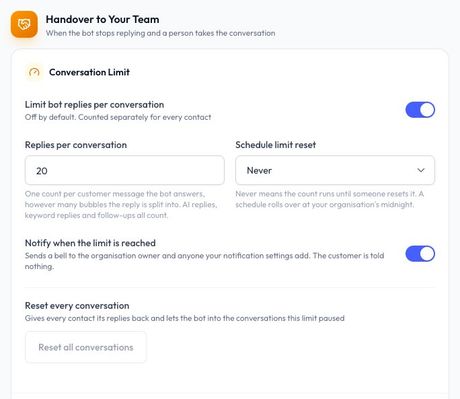
Conversation Limit stops the bot after it has replied a set number of times to the same customer. Then the conversation waits for your team. This puts a ceiling on what one customer can cost you, for example someone who keeps chatting but never buys.
How to Set It Up
- Open your chatbot and go to General Settings.
- In Handover to Your Team, turn on Limit bot replies per conversation.
- Set Replies per conversation, for example 10.
- Choose Schedule limit reset: Never, Daily, Weekly or Monthly.
- Leave Notify when the limit is reached on so your team knows when to step in.
- Save your changes.
Good to Know
- One count is one customer message the bot answers, however many bubbles the reply is split into. Turn off Auto-Split (step 1) so each reply is also one message.
- AI replies, keyword replies and follow-ups all count toward the limit.
- The customer is not told anything when the limit is reached.
- To give a customer their replies back, open the conversation in the Inbox and click Reset next to Bot replies left. To reset everyone, click Reset all conversations in General Settings.
Pick a Limit
With Auto-Split off, the limit is roughly the most Meta messages the bot sends to one customer:
| Replies per conversation | Most one customer costs (after 1,000 free) |
|---|---|
| 5 | 28 sen |
| 10 | 56 sen |
| 20 | RM1.12 |
Your team's own replies are not counted by this limit, but Meta still charges for them.
3. Ad Leads Only
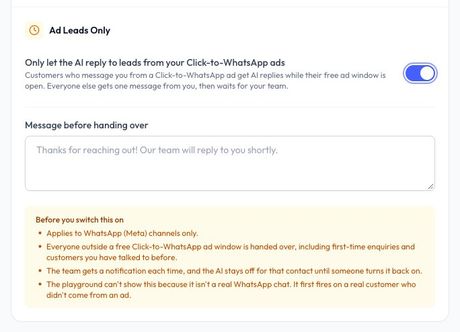
Ad Leads Only lets the AI reply only to customers who came from your Click-to-WhatsApp ads, while their free ad window is open. Everyone else gets one message from you, then waits for your team.
This suits businesses that pay for ads to bring in leads and do not want to pay Meta for AI chats with everyone else.
How to Set It Up
- Open your chatbot and go to General Settings.
- In Handover to Your Team, turn on Only let the AI reply to leads from your Click-to-WhatsApp ads.
- Fill in Message before handing over. This is required, up to 1,000 characters.
- Save your changes.
Good to Know
- Everyone outside a free ad window is handed over, including first-time enquiries and customers you've talked to before.
- Your team gets a notification each time, and the AI stays off for that contact until someone turns it back on.
- You can't test it in the AI Playground, because the Playground isn't a real WhatsApp chat.
Recommended Setups
| Your situation | Use |
|---|---|
| Most leads come from Click-to-WhatsApp ads | Auto-Split Messages off, Auto-Split for Ad Customers on |
| Leads come from everywhere and you want the AI to answer everyone | Auto-Split Messages off, plus Conversation Limit (for example 10, reset Monthly) |
| You only want to pay for AI chats with ad leads | Ad Leads Only on, with a handover message that points to your WhatsApp Business App number |