

AI Workflows
AI Workflows let you guide your chatbot through a conversation, step by step. You describe when a workflow should be used, then write the steps the AI follows, for example how to take a booking or close a sale.
How It Works
- The AI picks a workflow. On each customer message, the AI compares what the customer means with each enabled workflow's When should the AI use this? text. It matches meaning, not exact keywords.
- It follows the steps in order. The AI works on one step at a time. It sends what the step says, asks the step's question, then waits for the customer's answer before moving on.
- It handles side questions. If the customer asks something else halfway, the AI answers from your training data and AI Knowledge, then returns to the current step. It won't make up facts it doesn't have.
- It remembers answers. Details the customer already gave are not asked again in later steps.
- It finishes. After the last step, the chatbot goes back to its normal behaviour.
A few rules to know:
- When no workflow matches, your existing AI Behaviour and Closing Flow apply as usual.
- One workflow runs at a time. If a customer asks about two things that each have a workflow, the AI handles one first and tells the customer the other comes next.
- If two workflows fit equally, the AI asks the customer a short question to know which one they mean.
- Keywords come first. If a message matches a keyword rule, the keyword reply is sent and no workflow runs for that message.
- The customer can leave a workflow by cancelling or clearly changing the topic.
- The AI may rephrase your wording naturally, but keeps your step order, conditions and meaning.
Create a Workflow
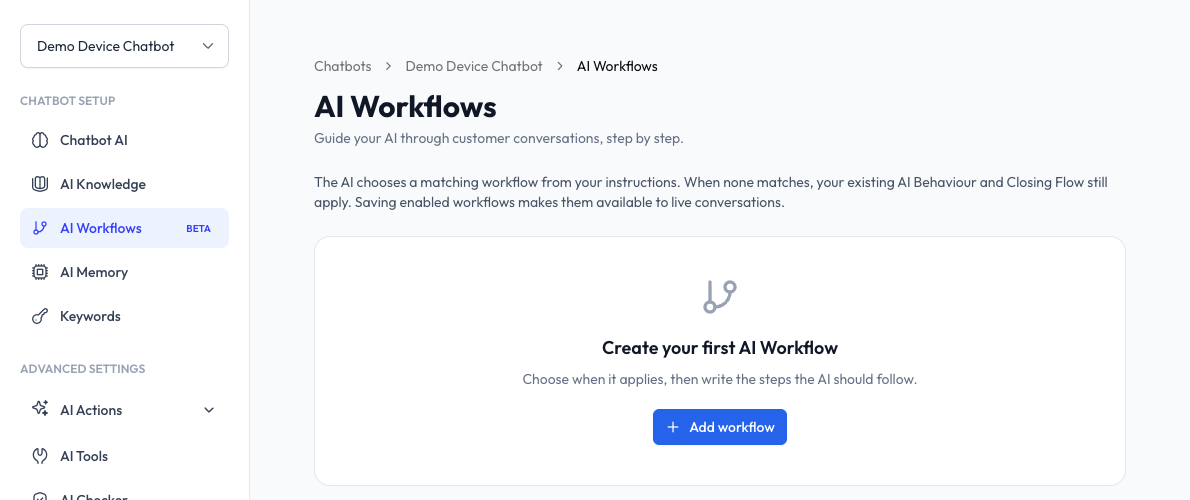
- Open your chatbot and click AI Workflows.
- Click Add workflow.
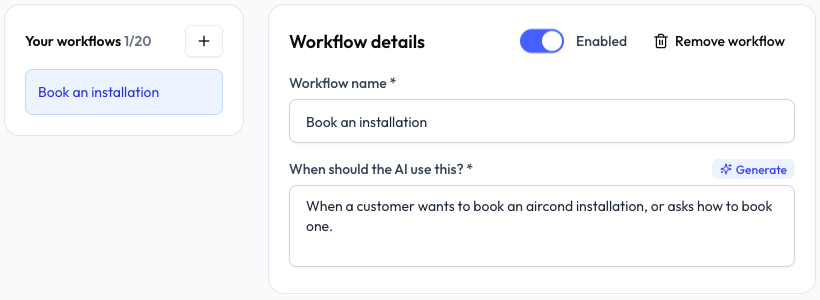
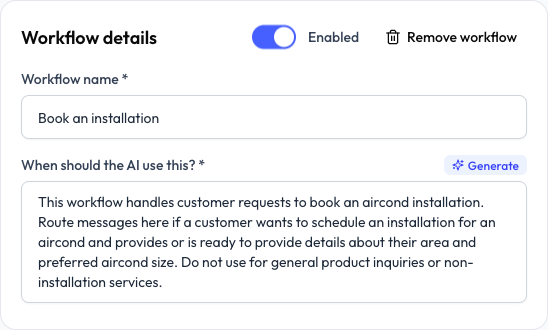
- Enter a Workflow name, for example "Book an installation".
- Fill in When should the AI use this? Describe the customer's situation, for example "When a customer wants to book an aircond installation, or asks how to book one."
- Turn on Enabled. New workflows start disabled.
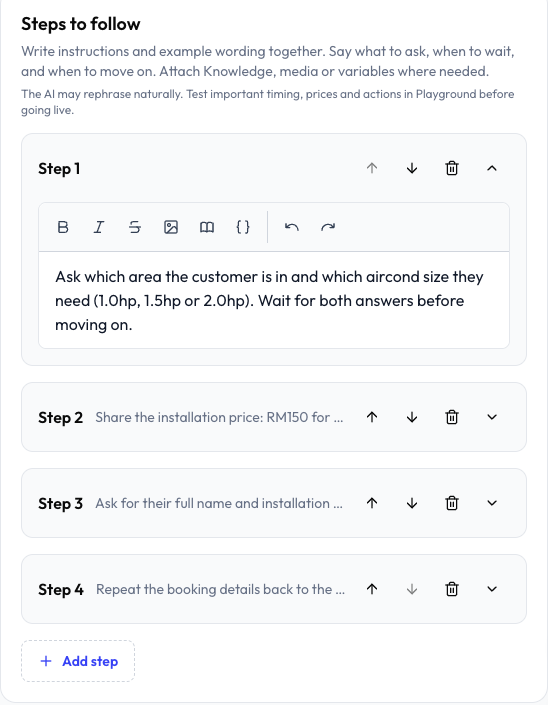
- Under Steps to follow, write Step 1. Click Add step for each next step.
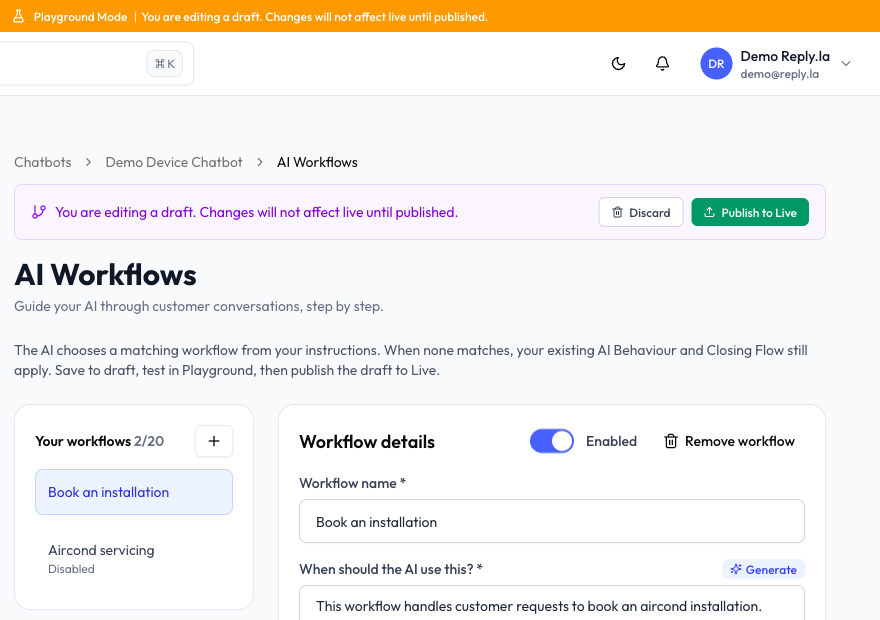
- Click Save Changes (or Save Draft in Playground Mode).
After you save a draft, you'll see AI workflows saved to draft. and a bar with Discard and Publish to Live. Disabled workflows are marked Disabled in the list.
Write Good Steps
One step is one chatbot reply. Write everything the chatbot should send in that reply, and end with the question it should wait on.
| Do | Don't |
|---|---|
| End each step with what to ask, and say "wait for the answer" | Pack several questions for different moments into one step |
| Handle choices inside the step: "If they choose A, say... If B, say..." | Write "go to Step 5". Steps always run in order |
| Put prices and fixed product lists directly in the step | Expect the AI to guess prices |
| Add a note like "(internal, do not send)" for instructions the customer shouldn't see | Add a catch-all step like "answer any other questions" |
| Make a separate workflow for combos, such as buying two products together | Squeeze every product into one long workflow |
Write the "When should the AI use this?" text like a customer would ask. Include the words customers really use, and say who the workflow is not for if that matters. For example: "When a customer wants to book an installation. Not for repair or servicing requests."
Add Knowledge, Media and Variables
The step editor toolbar lets you attach:
- Insert AI Knowledge Reference (book icon) - link a document from AI Knowledge. The AI reads it when it reaches that step. You can attach up to 2 documents per step.
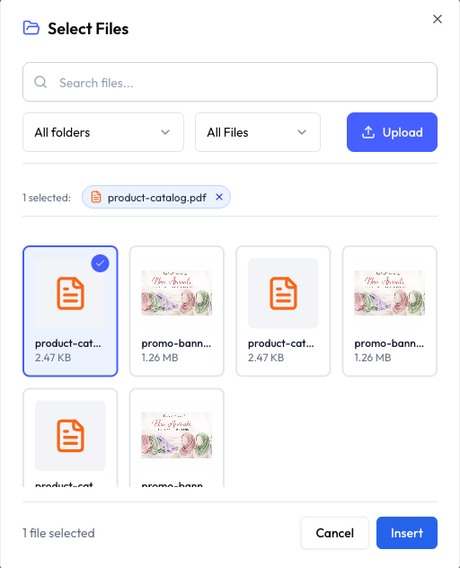
- Insert from Files (image icon) - pick a file from File Manager for the AI to send at that step, such as a catalogue or photo.
- Insert Variable ( icon) - insert contact or system details, such as the customer's name, which are filled in when the reply is sent.
Generate the Description
Not sure what to write in When should the AI use this? Write your steps first, then click Generate. The AI writes a short description from your steps, in the same language. Always read it and adjust it before you save.
You can generate up to 5 times a minute.
Copy Your Closing Flow
If your chatbot already has a Closing Flow, click Copy existing Closing Flow (or Copy Closing Flow in the workflow list) to turn its steps into a new workflow. Review the steps, then enable it.
Manage Workflows
- Reorder steps with the up and down arrows on each step.
- Remove a step with the bin icon. A workflow needs at least one step.
- Turn a workflow off with the Enabled switch. It stays saved but is not used.
- Remove a workflow with Remove workflow.
Changes take effect when you save.
Test Before Going Live
Use AI Playground to chat through each workflow as a customer would. Start a new session with New Session for each test, and check important prices, timing and wording before you enable the workflow on Live.
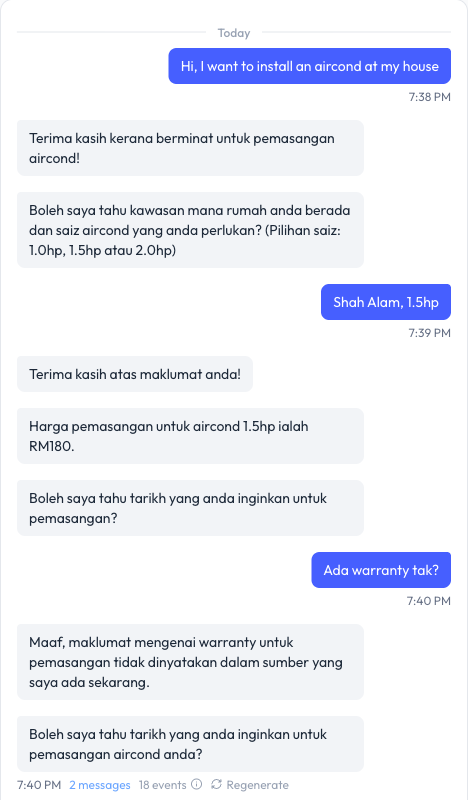
In this test, the chatbot follows Step 1 and Step 2 of the "Book an installation" workflow. When the customer asks about warranty, which isn't in its training data, it says it doesn't have that information and goes back to asking for the date. (This demo chatbot replies in Bahasa Malaysia.)
What Workflows Don't Do
Workflows guide what the AI says. They don't trigger actions by themselves:
- To add labels, use Auto Label.
- To hand a customer to your team, use Human Takeover.
- To look up or update data, use AI Tools.
Limits
| Item | Limit |
|---|---|
| Workflows per chatbot | 20 |
| Steps per workflow | 1 to 30 |
| Workflow name | 120 characters |
| When should the AI use this? | 1,000 characters |
| Each step | 20,000 characters |
| AI Knowledge documents per step | 2 |