

Interactive Messages
What Are Interactive Messages?
An interactive message lets your customer tap an answer instead of typing one. You build it once, save it, and reuse it wherever you need it.
For example, a cake shop sends "What would you like to do?" with three buttons: "Tempah kek", "Tanya harga", and "Cakap dengan admin". The customer taps one, and the shop knows straight away what they want.
Interactive messages are not WhatsApp Business Templates (the messages Meta must approve before you can send them). They need no approval. But on a Meta device, you can only send them while the reply window is open. The reply window is the 24 hours after the customer's last message, when you can reply freely. To start a conversation, or to reopen one after 24 hours, send an approved template first.
Where to Find Them
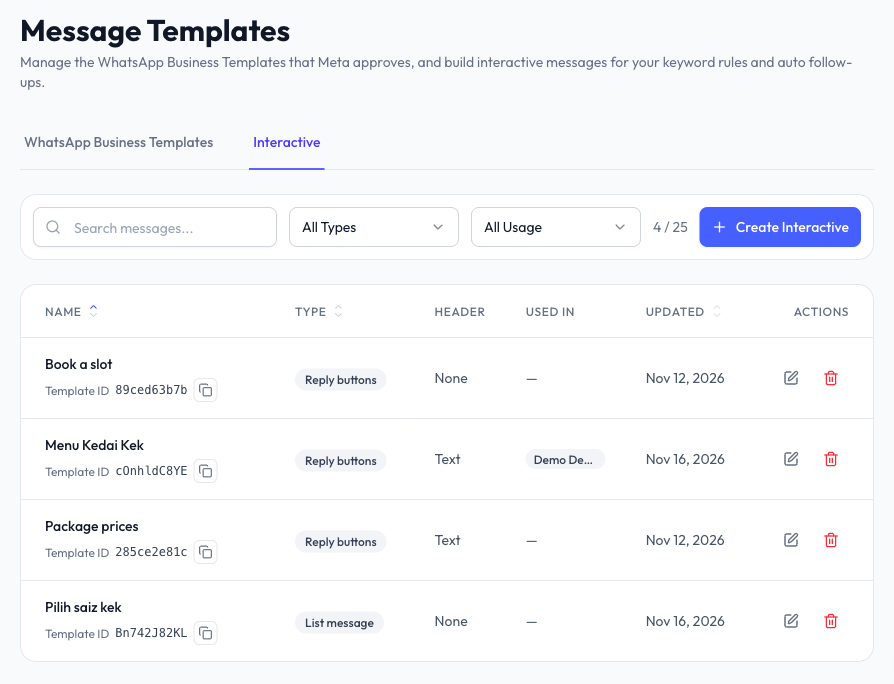
Click Templates on the left sidebar. The page has two tabs:
- WhatsApp Business Templates - Your Meta-approved templates.
- Interactive - Your saved interactive messages.
On the Interactive tab you can:
- Search by name. Filter by Type, or by Usage (Used in a chatbot or Not used). For example, filter by Not used to find old messages you can clear out.
- Sort by Name, Type, or Updated.
- Check the Used in column to see which chatbots send each message. It shows the first chatbot. Hover to see the rest.
- Click a message to preview it, with its type, header, chatbots, and last update.
- Copy its Template ID. A developer uses this ID to send the message through the API (a way for your own system to send messages through Reply.la).
- Edit or Delete it.
Message Types
When you create a message, pick a Message type:
| Type | What the customer gets | Example |
|---|---|---|
| Buttons | Up to 3 reply buttons. Or one link, location request, or contact request button. | A tudung boutique asks "Saiz apa?" with "S", "M", and "L". |
| List | One button that opens a menu of up to 10 rows. You can group the rows into sections. | A dental clinic sends a "Lihat servis" button that opens Scaling, Tampal gigi, and Cabut gigi. |
For Buttons, each button has a Type:
- Reply - The customer taps it to answer. You write its Label, such as "Tempah kek".
- Link - Opens a web page. You write its Label and Link, such as "Lihat katalog" linking to your online shop.
- Location request - Asks the customer to share their location. Handy for an aircond service that needs to know where the house is. WhatsApp draws this button itself as Send location, so there is no label to fill in.
- Contact request - Asks the customer to share their WhatsApp number. WhatsApp draws this button as Share Contact Info.
You can put up to 3 reply buttons in one message. A link, location request, or contact request button must be the only button in its message.
Create an Interactive Message
- Click Templates on the left sidebar, then the Interactive tab.
- Click Create Interactive.
- Under Details, enter a Name. Only your team sees it. You pick the message by this name in a keyword rule or follow-up.
- Choose the Message type: Buttons or List.
- Under Message, fill in:
- Header - The top of the message: None, Text, Image, Video, or Document. Files come from your File Manager. A list can only have a text header. A location or contact request has no header.
- Body - The main message, up to 1,024 characters.
- Footer (optional) - Small text at the bottom, up to 60 characters.
- Add your options:
- For Buttons, click Add button, choose its Type, and fill in its Label (and Link for a link button).
- For a List, enter the List button label. This is the button the customer taps to open the menu, such as "Lihat menu". Then add rows, each with a Label and an optional Description. To group rows, click Add section and give each section a Section title.
- Check the preview on the right.
- Click Save.
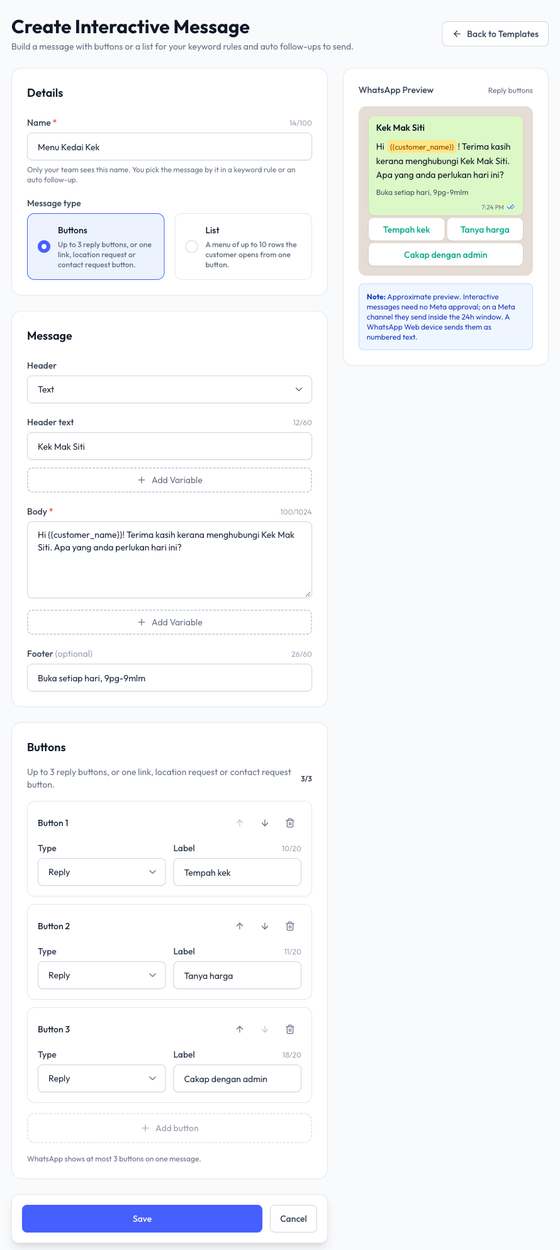
Example of a cake shop's main menu:
Name: Main menu
Message type: Buttons
Header: Image (a photo of your best-selling cake)
Body: Hi {{customer_name}}! Thanks for contacting Kek Mak Siti. What would you like to do?
Footer: Open daily, 9am-9pm
Buttons: Tempah kek / Tanya harga / Cakap dengan admin
Merge Tags
A merge tag is a placeholder that Reply.la swaps for the customer's own details when it sends the message. For example, "Hi " reaches Aisyah as "Hi Aisyah".
To add one, click Add Variable under the header text or body. Pick a system variable, one of your Custom Variables, or Create new variable....
If you type a tag Reply.la doesn't recognise (not a system variable or one of your saved variables), the builder warns you and suggests the closest name. You can still save, because the tag may be a contact field (a detail saved on the contact). A contact field only fills in for contacts that have it.
A field cannot hold merge tags only. Add some normal text too: write "Hi ", not just "".
Why You Can't Save Yet
The builder lists what to fix under To save, fill in: and WhatsApp cannot send this yet. Save stays disabled until you fix these:
- A link, location request, or contact request button is mixed with other buttons. Remove the other buttons, or split them into two interactive messages.
- There are more than 3 reply buttons.
- Two buttons or rows have the same label.
- A button or row label says STOP or SUBSCRIBE. These words switch a customer's Blaster subscription on or off, so a customer who taps it would change their subscription by accident. Choose another label.
- A list has more than one section, and one section has no title.
- Some text is longer than WhatsApp allows:
| Field | Limit |
|---|---|
| Body | 1,024 characters |
| Header text | 60 characters |
| Footer | 60 characters |
| Button label | 20 characters |
| List button label | 20 characters |
| Section title | 24 characters |
| Row label | 24 characters |
| Row description | 72 characters |
| List | Up to 10 sections and 10 rows in total |
{{customer_name}} may become "Nurul Ain binti Ahmad". Keep labels with merge tags well under the limit.Use It in a Keyword Rule
A keyword rule can reply with your saved message when a customer sends a certain word. For example, when a customer types "menu", the cake shop replies with its 3-button menu.
- Open your chatbot and click Keywords.
- Click Add Rule, or edit an existing rule.
- Add a response step and choose Interactive message.
- Pick a message from the list.
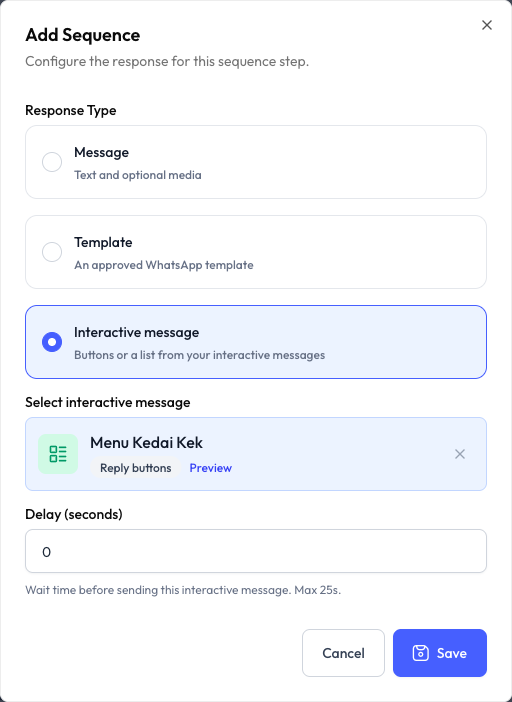
- Save the rule.
When a customer's message matches the rule, the chatbot sends your interactive message as part of the sequence. See Keywords.
Use It in Auto Follow Up
A follow-up step can send a saved interactive message, so a customer who went quiet can answer with one tap. For example, 2 hours after a customer asks about aircond servicing, send "Nak kami book slot?" with "Ya, book sekarang" and "Nanti dulu".
Open a follow-up, set Message Type to Interactive, and pick the message. See Auto Follow Up.
On a Meta device, an interactive step must go out within 24 hours of the customer's last message. Once the total wait reaches 23 hours 50 minutes, Interactive is disabled. Shorten the wait, or switch the step to a template.
Send It from the Inbox
You can also send a saved message yourself during a chat. For example, a clinic admin sends the "Pilih slot" list instead of typing out every free time slot.
- Open the conversation.
- Click + in the composer, then Template.
- Open the Interactive tab and pick a message.
- Fill in any merge tags that have no value. You can't send until every tag has a value.
- Check the preview, then send.
On a WhatsApp Web device you can also send one to a new number: in the New chat panel, click Send an interactive message under the message box.
On a Meta device, the Interactive tab is locked when the reply window is closed. This also applies to a new number. Send a WhatsApp Business Template first to reopen the conversation. A WhatsApp Web Direct API device has no reply window, so you can send at any time.
To send, you need the Send Templates permission.
Send It Through the API
This part is for developers who connect their own system to Reply.la.
Each message has a Template ID under its name on the Interactive tab, with a copy button. The ID never changes. Send it as interactive_message with the API's message send endpoint. Put merge tag values in values. For example, if the body says "Hi ", pass the customer's name there. See Integrations and REST API.
On a WhatsApp Web Device
A WhatsApp Web Direct API device cannot show real buttons. So Reply.la sends the same message as text, with a number before each option, ending with "Reply with the number of your choice."
For example, the cake shop menu reaches the customer like this:
What would you like to do?

1. Tempah kek
2. Tanya harga
3. Cakap dengan admin

Reply with the number of your choice.
The customer types a number, such as 2. Reply.la records it as the option they picked, "Tanya harga". This works as long as the number answers your latest interactive message and nothing else was sent in between. The AI also sees the numbered list, so it knows that "2" means "Tanya harga".
Keyword rules still match the exact text the customer typed. So a rule for "Tanya harga" does not run when they type "2".
When one keyword rule sends several interactive messages, the numbers carry on across them, so no two options share a number. For example, if the first message has options 1 to 3, the next one starts at 4.
What You See in the Inbox
- The interactive message you sent shows as a card with its header, body, and buttons. Click a list, link, or location request to see its details.
- When a customer taps a button or picks a row, their reply shows the label they chose, such as "Tanya harga", quoting your message.
- On a WhatsApp Web device, the customer's reply is the number they typed, such as "2".
- A shared location or contact card arrives as a normal message.
Plan Limit
How many interactive messages you can save depends on your plan. By default, an organization can save 25. Deleted messages don't count. At the limit, Create Interactive is disabled and shows Plan limit reached. Delete a message you no longer use, or upgrade your plan.
For example, if you have 25 saved, delete 2 old promo menus to make room for 2 new ones.
Edit or Delete a Message
- Edit - If chatbots already use the message, Reply.la lists them and asks you to confirm. From then on, they send the new version. For example, rename "Tanya harga" to "Senarai harga", and every chatbot using that menu shows the new label.
- Delete - If the message is in use, type its name to confirm. Keyword steps that send it are skipped until you pick another message. A follow-up step that sends it is cancelled, and the follow-up moves on to its next step.
You can't delete a File Manager file while a message uses it as its header.
Common Questions
Last updated: 16 November 2026