

Contacts
Import Contacts
Bring your existing customer list into Reply.la from a file or by pasting phone numbers.
Already have a customer list? Import it instead of adding people one by one. You can link everyone to a device and label them in one go.
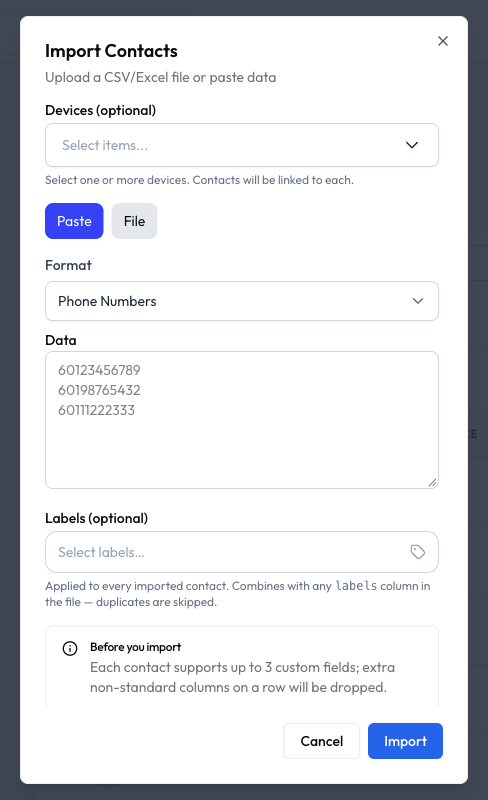
How to Import
- Go to the Contact List and click Import.
- Under Devices (optional), select one or more devices. Contacts will be linked to each.
- Choose Paste or File, then add your contacts as described below.
- Under Labels (optional), pick labels to apply to every imported contact.
- Click Import.
Paste Phone Numbers
Use Paste for a quick list of numbers.
- Leave Format on Phone Numbers.
- In Data, paste one number per line, starting with the country code. For example,
60123456789.
You can paste up to 1,000 numbers at a time. For a longer list, use File.
Upload a File
Use File when you have names, emails, or other details to bring in.
- Click Download example template to see the format.
- Fill in your contacts. The template has the columns
name,email,phone,company,notes, andlabels, plus two example custom-field columns. - Click Choose file and select your file.
The maximum file size is 10MB. Supported formats are CSV, XLSX, XLS, and TXT.
Labels and Custom Fields
- Labels you pick in the dialog combine with any
labelscolumn in the file. Duplicates are skipped. - Each contact supports up to 3 custom fields. Extra non-standard columns on a row are dropped.
After You Import
Reply.la tells you how many contacts were new and how many were updated. It also tells you how many rows were skipped and why.
If rows are skipped because a phone number is in scientific notation, your spreadsheet has reformatted the number. Format the phone column as Text, export the file again, and import it again.
Common Questions
The contact is updated rather than added again. The result message shows how many were updated.
A row is skipped if it has no name, email, or phone, if the phone number format is invalid, or if the number is in scientific notation.
Importing needs permission to create contacts, so check your role with your organization's owner. The button is also disabled in Playground Mode.
Last updated: 5 November 2026