
Templates
Apa Itu Template?
WhatsApp perlukan business untuk guna template mesej yang dah approved bila nak hantar mesej pertama kepada customer (outbound) atau bila window perbualan 24 jam dah tamat. Template ni macam mesej standard yang WhatsApp kena review dan approve sebelum anda boleh guna.
Bayangkan template ni macam surat yang dah siap tulis. Anda create template sekali, WhatsApp approve, dan lepas tu anda boleh guna banyak kali untuk hantar mesej kepada customer.
Kenapa Saya Perlu Template?
- Start perbualan - Anda tak boleh tiba-tiba hantar mesej bebas kepada customer. WhatsApp perlukan template.
- Lepas 24 jam - Kalau customer tak reply dalam 24 jam, anda perlukan template untuk open balik perbualan tu.
- Broadcast - Nak hantar mesej yang sama kepada ramai customer sekaligus (macam promo, update, dll).
- Notification - Order confirmation, shipping update, appointment reminder, dll.
Cara Nak Create Template
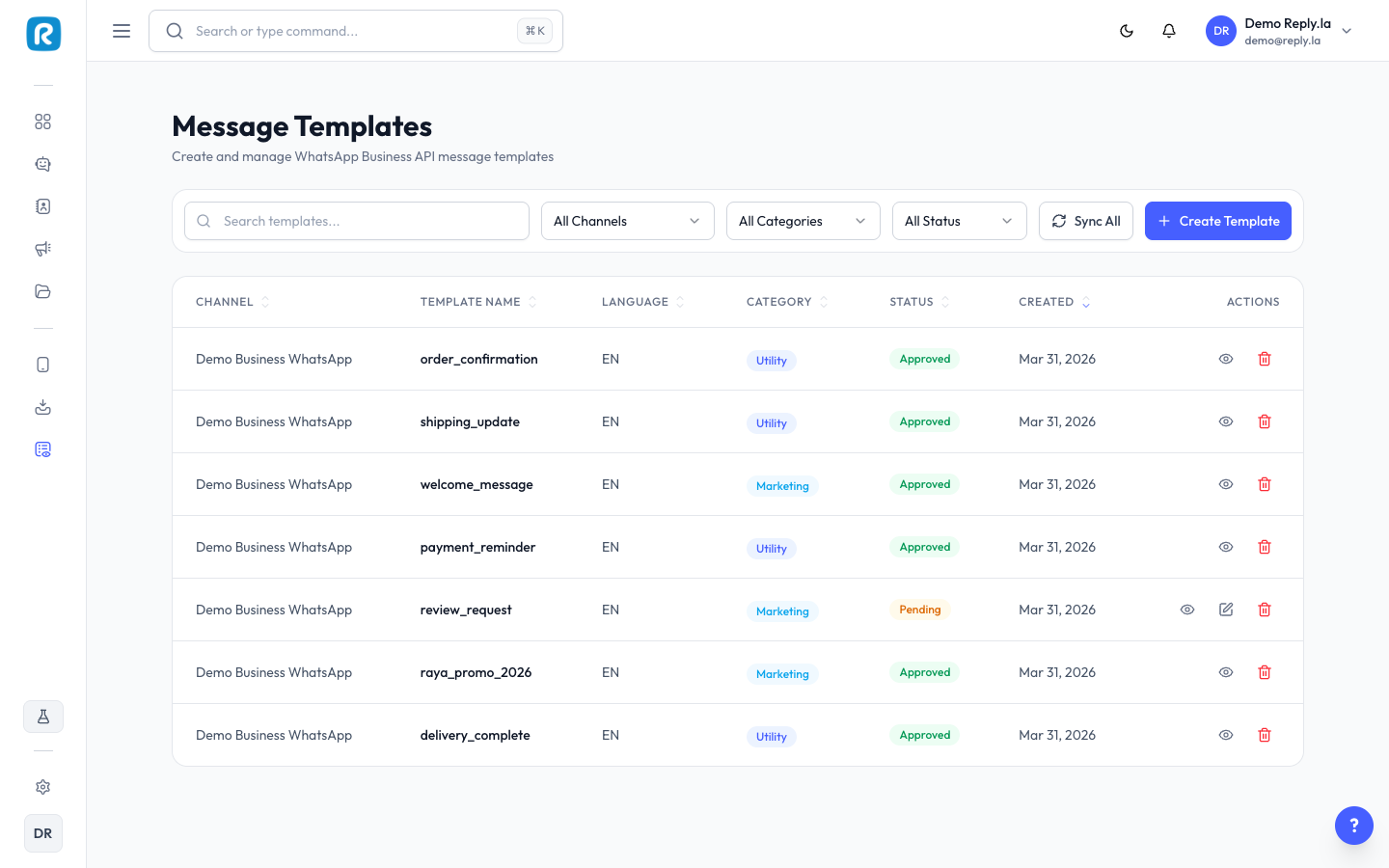
- Click Templates dekat sidebar kiri.
- Click Create Template (button +).
- Isi details:
- Template Name - Nama untuk rujukan anda (contohnya, "welcome_message", "order_confirmation"). Guna huruf kecil dan underscore sahaja.
- Category - Pilih jenis:
- Marketing - Promo, offer, announcement.
- Utility - Order update, appointment reminder, akaun notification.
- Authentication - Login code, verification message.
- Language - Pilih bahasa (contohnya, Melayu, Inggeris).
- Header (optional) - Teks, gambar, video, atau dokumen. Anda boleh upload fail media terus.
- Body - Content mesej utama. Anda boleh masukkan variable macam , yang akan diganti dengan data sebenar masa hantar.
- Footer (optional) - Teks kecil dekat bahagian bawah.
- Buttons (optional) - Call-to-action atau quick reply button.
- Click Submit for Review.
- Tunggu WhatsApp approve template anda (biasanya ambil masa beberapa minit hingga beberapa jam).
Contoh Template
Welcome Message
Header: Tiada
Body: Hi {{1}}! Welcome to our shop. Kami sedia membantu anda cari outfit yang perfect.
Balas mesej ni untuk mula chat dengan kami!
Footer: Powered by ReplyLa
Button: [Quick Reply: "Tengok Produk"] [Quick Reply: "Contact Us"]
Order Confirmation
Header: Teks - "Order Confirmed"
Body: Hi {{1}}, order anda #{{2}} dah confirmed!
Total: RM{{3}}
Delivery: {{4}} hari bekerja
Kami akan hantar tracking number lepas ship out.
Footer: Terima kasih sudi shopping dengan kami
Button: [Call-to-action: "Track Order"]
Promotion
Header: Gambar (promo banner anda)
Body: Hi {{1}}! Good news - Raya Sale kami dah bermula!
Dapatkan diskaun up to 50% untuk semua item weekend ni.
Beli sekarang sebelum stok habis!
Footer: Valid sampai 31 Mac 2024
Button: [Call-to-action: "Shop Now" - URL website anda]
Status Template
| Status | Maksud |
|---|---|
| Pending | Dah submit dan tengah tunggu WhatsApp review. |
| Approved | Ready to use! Anda dah boleh hantar template ni kepada customer. |
| Rejected | WhatsApp tak approve. Boleh edit dan submit balik. |
Template Draf
Anda boleh save template sebagai draf sebelum submit untuk review. Draf membolehkan anda prepare dan semak template sebelum hantar untuk WhatsApp approval. Bila dah ready, buka draf tu dan klik Submit for Review.
Kebenaran Template
Permission Send Templates mengawal siapa dalam team anda yang boleh hantar template mesej. Configure ni dalam Organization settings bawah team member roles. Hanya user yang ada permission ni boleh hantar template mesej dari Inbox atau Broadcasts.